Document Scan into Salesforce Records
You do not always receive your customer information on a traditional business card.
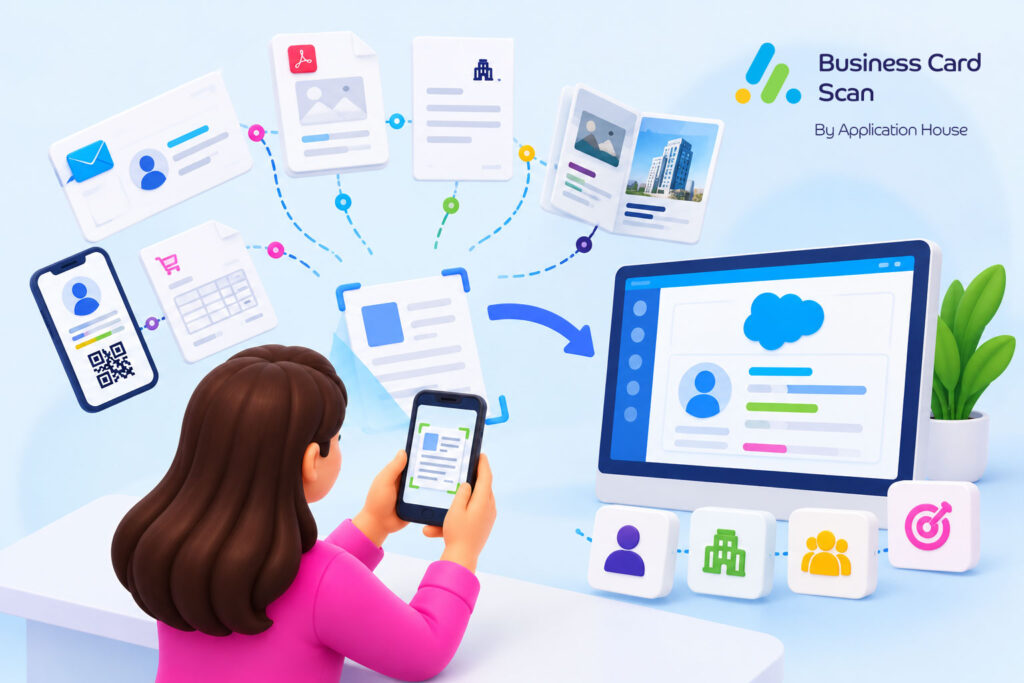
You may receive your person’s name, company, job title, email address, telephone number or website inside an email signature, letterhead, invoice, brochure, flyer, PDF, image or digital business card shown on a screen.
You can use Application House Business Card Scan App to scan your document, identify your main contact information and bring your captured details into your configured Salesforce process.
You can review your captured information before you save and use your data to create your Lead, Contact, Contact and Account, Campaign Member or another Salesforce record your business needs.
You can therefore make useful business information available to your wider Salesforce team even when your customer never gives you a physical business card.
What Is Document Scan
You can use Document Scan when your useful contact or company information appears on a document or image rather than on a traditional business card.
You can let your app identify the main person or company information from your supported document and prepare your captured details for your Salesforce process.
You can map your captured information into the Salesforce fields your organisation has configured.
You can make your document useful as a source of customer data without asking your user to copy every name, telephone number, email address and company manually.
Document Scan Focuses on Your Contact and Company Information
You can use Document Scan to capture your useful contact details rather than treating your app as a general document management system.
You can use your invoice, brochure or other document when your business value comes from identifying your person or company behind your document.
You can then move your captured information into your Salesforce business process where your sales, account or service team can use it.
You can keep your focus on the customer relationship behind your document rather than simply storing another file.
Scan Email Signatures into Salesforce Records
You may receive your first customer enquiry by email while your sender’s signature already contains most of the information your Salesforce record needs.
You can scan your email signature and capture your person’s available name, job title, company, telephone number, email address and other supported information.
You can use your captured information within your configured Salesforce process instead of asking your salesperson to create your customer manually from your inbox.
You can make your ordinary customer email another practical source of Salesforce business data.
Inbound Sales Enquiry Example
You may receive your pricing enquiry from an operations director whose details appear in your email signature.
You can scan your signature and bring your available contact details into your Salesforce process while your enquiry is still commercially relevant.
You can give your wider sales team access to your prospect instead of leaving your relationship visible only inside your salesperson’s mailbox.
You can continue your email conversation while your Salesforce record supports your wider sales process.
Scan Letterheads into Salesforce Records
You may receive your formal correspondence on a company letterhead that contains useful organisation and contact information.
You can scan your letterhead and capture your available person or company details for your Salesforce process.
You can use your captured information when your sales or account team needs to identify the organisation behind your correspondence.
You can avoid asking your user to retype information your customer has already provided in your document.
Explore our Business Card Scanner App on Salesforce AppExchange to discover its features and capabilities.
Professional Services Letter Example
You may receive your signed correspondence from a finance director at a company your consulting team wants to develop into a new client.
You can scan your letterhead and capture your available contact and company information.
You can use your captured details to prepare the Salesforce records your business development process requires.
You can give your wider client team access to your relationship without depending on one consultant to enter your information manually.
Scan Invoices for Contact Details into Salesforce Records
You may receive your invoice from a supplier, partner or customer where your document contains useful contact and company details.
You can use Document Scan when your business purpose is to capture the person or organisation information shown on your invoice.
You can bring your useful contact details into your configured Salesforce process instead of manually copying your company and contact information.
You can make your commercial document useful to your relationship management process as well as to your financial process.
Supplier Relationship Example
You may receive your invoice from a new specialist supplier whose account manager has not yet been recorded in your Salesforce organisation.
You can scan your document and capture your available supplier and contact information.
You can use your captured details with the Salesforce records your supplier or partner process uses.
You can give your procurement, operations or account team shared access to your contact instead of leaving your relationship inside an invoice file.
Customer Billing Contact Example
You may receive your document containing a new billing or commercial contact for an existing customer.
You can capture your person’s available information and bring your new stakeholder into your Salesforce process.
You can help your account team understand who manages your customer’s commercial administration.
You can make your invoice another source of useful relationship information without changing your normal Salesforce customer structure.
Scan Brochures into Salesforce Records
You may receive your supplier, partner or prospective customer’s brochure during your exhibition, meeting or sales conversation.
You can use Document Scan when your brochure includes a useful named contact and company information.
You can identify your main person from your document and bring your available details into your Salesforce process.
You can make your brochure more useful than a piece of marketing material when your document also introduces your organisation to a real business contact.
Partner Brochure Example
You may meet your technology partner at an industry event and receive your brochure showing your partner manager’s contact details.
You can scan your brochure and capture your named contact rather than keeping your partner information only in your event bag.
You can bring your person into the Salesforce records your channel team uses.
You can make your sales or partner relationship available to your wider organisation while your brochure still serves its original marketing purpose.
Scan Flyers into Salesforce Records
You may receive your flyer at a networking event, local business event or industry exhibition where your document includes a named contact or business details.
You can scan your flyer when your contact information is useful to your sales or partnership process.
You can capture your available person and company details and review your information before your Salesforce save.
You can turn your useful flyer information into shared business data instead of leaving your contact on a piece of paper that may later be discarded.
Local Business Networking Example
You may attend your regional business event and receive your service provider’s flyer containing your founder’s name, telephone number and email address.
You can scan your flyer and capture your available contact details for your Salesforce process.
You can create the Salesforce relationship your team needs without asking your user to enter your contact manually after your event.
You can keep your networking activity useful after your physical flyer is no longer needed.
Scan PDF or Image Based Contact Details into Salesforce Records
You may receive your customer information as a PDF or image rather than through a physical card.
You can use Document Scan when your PDF or image contains the contact or company information your Salesforce process needs.
You can capture your available details and review your information before you save your configured records.
You can make your digital document another practical source of customer information instead of copying your details between applications manually.
Proposal or Company Introduction Example
You may receive your proposal or company introduction document where your commercial contact appears on your first or final page.
You can scan your available contact information and bring your person into your Salesforce process.
You can connect your relationship with the records your sales team already uses instead of leaving your key contact buried inside your PDF.
You can help your wider team find your customer information without repeatedly opening your original document.
Contact Details Shared as an Image
You may receive your contact details as an image through your email, messaging conversation or internal handover.
You can use your image as your source when your person or company information is clearly available.
You can capture your useful details into Salesforce instead of asking your user to read your image and type each field manually.
You can make your informal digital handover part of your structured customer process.
Scan Digital Business Cards Shown on a Screen
You may meet your prospect who shows you a digital business card on a phone, tablet or another screen instead of handing you a printed card.
You can use your Business Card and Documents scanning process to read your digital business card shown on your screen.
You can capture your available contact information and continue through your normal Salesforce review and save process.
You can support your modern customer interaction without requiring your prospect to carry a physical business card.
Create Lead from Document Scan
You may receive your document from a company or person your sales organisation has never worked with before.
You can use your Document Scan to capture your available contact information and create your Lead when your configured Salesforce process treats your person as a new prospect.
You can place your prospect into your normal qualification process instead of leaving your commercial relationship inside your email, brochure, flyer or PDF.
You can give your salesperson a structured Salesforce record to own and progress.
New Enquiry from a Company Document
You may receive your product enquiry with your company PDF attached and your commercial manager identified inside your document.
You can scan your relevant information and create your Lead according to your configured process.
You can make your new prospect visible to your wider sales team while your enquiry continues.
You can reduce your risk that your commercially useful contact remains trapped inside your document.
Create Contact from Document Scan
You may already know your customer organisation while your document introduces you to another person inside your Account.
You can scan your document and create your Contact when your configured Salesforce process needs your new stakeholder represented as a Contact.
You can capture your person’s available information and place your details into your chosen Salesforce fields.
You can expand your shared customer knowledge without asking your account manager to retype your stakeholder manually.
Existing Customer Stakeholder Example
You may receive your project document showing your new operations director while your organisation already manages your customer in Salesforce.
You can scan your contact information and create your Contact according to your configured process.
You can make your new stakeholder visible to your account and service teams.
You can help your organisation understand your customer relationship beyond the individual person who originally received your document.
Create Contact and Account from Document Scan
You may receive your document from a company and person that your organisation does not yet hold in Salesforce.
You can use your Document Scan to capture your available organisation and person information and create your Contact and Account when your configured process requires both.
You can relate your Contact to your Account so your person does not enter Salesforce without your company context.
You can give your sales team a more complete business relationship from your first captured document.
New Professional Services Prospect Example
You may receive your introduction document from a company seeking your consulting or professional services.
You can scan your named contact and company information from your document.
You can create your Account for your organisation and your Contact for your decision maker according to your configured process.
You can give your business development team a structured relationship instead of simply saving your PDF in a folder.
Create Campaign Member from Document Scan
You may receive your follow up document from someone who attended your webinar, seminar, exhibition or another marketing activity.
You can use your Document Scan to capture your available contact information and connect your person with your Salesforce Campaign when your configured process requires Campaign Member.
You can keep your later document based interaction connected with the Campaign that introduced your person to your business.
You can give your sales and marketing teams clearer context about why your person entered your Salesforce process.
Create Any Salesforce Record from Document Scan
You may have your business process built around more than your Lead, Contact, Account and Campaign Member.
You can use your Document Scan with any standard or custom Salesforce object that your administrator can access and create according to your configured scan.
You can map your captured document information into your chosen Salesforce fields and relate your records around your business process.
You can make your document useful to your industry specific Salesforce application instead of forcing every captured person into the same record type.
Recruitment Business Example
You may receive your vacancy document or company information showing your hiring manager’s details.
You can scan your available contact information and use the Salesforce records your recruitment process requires.
You can relate your hiring manager to your client Account and your other configured recruitment records.
You can turn your recruitment document into useful Salesforce relationship data instead of leaving your contact inside your attachment.
Manufacturing and Distribution Example
You may receive your product brochure, supplier document or commercial PDF showing your distributor or procurement contact.
You can capture your person and company information through your Document Scan.
You can relate your contact to your Account, distributor or another configured record according to your Salesforce process.
You can keep your channel and customer relationships connected with your actual business data.
Configure Your Document Scan Around Your Salesforce Fields
You may want your captured email address, telephone number, job title or company information stored in fields designed around your organisation.
You can configure your scan so your captured details go into your chosen Salesforce fields.
You can also use your fixed field values where your configured business process requires additional context that your document does not contain.
You can keep your existing Salesforce data model while your Document Scan adapts to the way your organisation already works.
Use Document Scan When Your Business Information Already Exists
You may already possess the contact information your Salesforce process needs inside your normal business documents.
You can avoid asking your salesperson, consultant, account manager or operations user to type information your customer has already supplied.
You can turn your existing document into a practical source of structured Salesforce data.
You can make better use of the information your organisation receives every day.
Document Scan into Salesforce Records with Application House
You can use Application House Business Card Scan App when your valuable contact information appears somewhere other than a traditional business card.
You can scan your email signatures, letterheads, invoices, brochures, flyers, PDF or image based contact details and digital business cards shown on a screen.
You can identify your main person or company information and bring your captured details into your configured Salesforce fields.
You can create your Lead, Contact, Contact and Account, Campaign Member or another standard or custom Salesforce record according to your business process.
You can make the documents your organisation already receives more useful by turning your contact information into Salesforce data your wider team can work with.
Frequently Asked Questions
1. How can you scan documents into Salesforce records?
You can use Application House Business Card Scan App to scan supported documents containing contact or company information. The app identifies available details, such as name, company, job title, email address and telephone number, allowing you to review the captured information and create Salesforce records through your configured process.
2. Can you scan email signatures and create Salesforce Contacts?
Yes. You can scan supported email signatures to capture available contact details, including name, job title, company, telephone number and email address. You can map the captured information to your Salesforce Contact fields and create a Contact through your configured scanning process.
3. Can you create Salesforce Leads and Accounts from one document scan?
Yes. You can configure Document Scan to create a Lead or prepare both a Contact and Account from one scan. You can map the available person and company information to the relevant Salesforce fields and establish relationships between the records.
4. Can you scan PDF documents and images into Salesforce?
Yes. You can use Document Scan to capture contact and company information from supported PDF documents and images. This is useful when customer details appear in proposals, company introductions, email attachments or digital documents rather than on traditional business cards.
5. Can you create custom Salesforce objects from document scans?
Yes. You can configure Document Scan to create records in standard or custom Salesforce objects that your administrator can access and create. You can map captured information to your selected Salesforce fields and establish relationships according to your business requirements.
6. Can you add contacts from scanned documents to Salesforce Campaigns?
Yes. You can configure your scanning process to create Salesforce Campaign Members from captured contact information. You can connect existing or newly created Leads and Contacts to your selected Campaign, helping your sales and marketing teams track contacts from exhibitions, webinars, seminars and other marketing activities.
7. Can you map scanned document information to custom Salesforce fields?
Yes. You can configure Document Scan to map captured details, such as email address, telephone number, job title and company name, to your chosen Salesforce fields. You can also use fixed field values when your business process requires additional information that is not present in the document.