Scan Event Visitor Badges into Salesforce
You may meet hundreds of potential customers, partners and existing clients at your conference, exhibition or industry event.
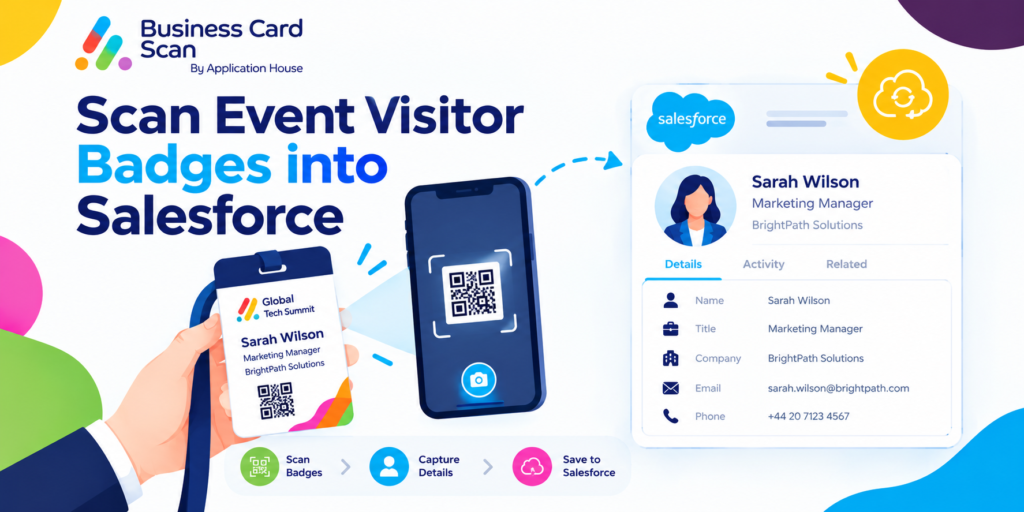
You can use Application House Business Card Scan App to read useful information printed on your visitor badge and bring your captured details into Salesforce.
You can use Badge Scan when your badge code contains only an attendee number and your useful business information is actually printed on your badge.
You can let your app identify your person while ignoring event branding and role words such as Speaker that should not become your customer information.
You can review your captured details and create or update the Salesforce records your event process needs.
Read Contact Information Printed on Your Event Badge
You may receive an event badge showing your visitor’s name, company, job title or other useful contact information.
You can use your Badge Scan to read your printed visitor information instead of asking your salesperson to type your details during a busy event.
You can capture your business information while your salesperson is standing with your visitor and understands the reason for your conversation.
You can then move your visitor into your configured Salesforce process while your meeting is still relevant.
When Your Badge Code Contains Only an Attendee Number
You may find that your event badge contains a QR code or barcode that stores only your attendee number rather than your actual contact information.
You can use your Badge Scan to read your printed badge information when your useful details are not contained inside your code.
You can therefore capture your person from the information your visitor can actually see on your badge rather than depending on your event organiser’s internal attendee identifier.
You can make your badge useful to your Salesforce process even when your code itself does not provide your customer details.
Ignore Event Branding and Focus on Your Visitor
You may have your event name, sponsor branding, hall information or labels such as Speaker printed alongside your visitor details.
You can use your Badge Scan to focus on your person rather than treating every visible word as customer information.
You can avoid filling your Salesforce fields with event branding or role words that do not describe your actual customer record.
You can keep your captured information focused on the person and company your team wants to develop after your event.
Speaker, Exhibitor and Sponsor Badges
You may scan your badge from a speaker, exhibitor, sponsor representative or visitor where your event role is printed prominently.
You can capture your useful person and company information without treating your word Speaker as your person’s job title.
You can keep your Salesforce information relevant to your real business relationship rather than your temporary role at the event.
Capture Your Visitor While the Conversation Still Matters
You may have only a few minutes with your potential customer during your exhibition or conference.
You can scan your visitor badge while your salesperson still remembers what your person was interested in and why your conversation matters.
You can reduce your dependence on collecting badges, writing names in notebooks or manually entering your contacts at the end of your event.
You can give your team more time to continue your business conversation while your contact capture supports your Salesforce process.
Exhibition Stand Example
You may have your prospect visit your exhibition stand and spend ten minutes discussing your product or service.
You can scan your visitor’s printed badge after your conversation and bring your available information into Salesforce.
You can give your salesperson a structured record for your follow up instead of asking your team to reconstruct your contact list after your exhibition closes.
Turn Your Event Visitor into the Right Salesforce Record
You may meet very different types of people during the same event.
You can configure your Badge Scan around the Salesforce records your business needs rather than treating every visitor in exactly the same way.
You can create your Lead, Contact, Contact and Account, Campaign Member or another standard or custom Salesforce record from your scan.
You can map your captured details into your chosen Salesforce fields and relate your records around your business process.
Create Lead from Event Visitor Badge Scan
You may meet your visitor for the first time when your person approaches your exhibition stand or attends your seminar.
You can create your Lead when your configured Salesforce process treats your visitor as a new prospect.
You can place your person into your normal qualification process while your team still understands your interest and your reason for speaking.
You can turn your event introduction into a sales opportunity your team can develop after your event.
Create Contact from Event Visitor Badge Scan
You may recognise your visitor’s company because your organisation already works with your Account while your person is new to your team.
You can create your Contact when your configured process needs your new stakeholder added to your existing customer relationship.
You can make your additional decision maker or influencer visible to your wider account team.
You can use your event conversation to expand your understanding of the people involved in your customer organisation.
Create Contact and Account from Event Visitor Badge Scan
You may meet your visitor from a company that does not yet exist in your Salesforce organisation.
You can create your Contact and Account when your configured process requires your new person and company together.
You can relate your Contact to your Account so your event visitor enters Salesforce with your organisation context already available.
You can give your salesperson a stronger starting point for your follow up than an isolated name from an event badge.
Create Campaign Member from Event Visitor Badge Scan
You may use your Salesforce Campaign to manage your exhibition, conference, seminar or another marketing event.
You can add your scanned visitor to your Campaign when your configured process requires your person to be associated with your event.
You can update your existing Contact and add your person to your Campaign when your Contact is found, while your Lead can be found or created when your Contact is not found.
You can avoid adding your person to your same Campaign twice when your visitor is already a Campaign Member.
You can give your sales and marketing teams a clearer view of which activity generated your relationship.
Create Any Salesforce Record from Event Visitor Badge Scan
You may run your event process around custom Salesforce records rather than only your Lead, Contact or Account.
You can use your Badge Scan with any standard or custom Salesforce object your administrator can access and create through your configured scan.
You can map your captured information to your chosen fields and relate your records to each other where your process requires it.
You can make your Event Visitor Badge Scan fit your Salesforce data model instead of changing your business process to fit your scanner.
Explore our Business Card Scanner App on Salesforce AppExchange to discover its features and capabilities.
Check Whether Your Visitor Already Exists in Salesforce
You may scan your badge from an existing customer, previous prospect or partner your organisation already knows.
You can use your configured Salesforce Duplicate Rules or app matching rules to check your visitor against your existing Salesforce records.
You can review your possible matches before your final save and choose your correct existing record where your configuration requires your decision.
You can update your known relationship instead of creating another version of your same person.
Connect Your Badge Scan with Your Event Campaign
You may want your sales team to know not only who your visitor is but also which event generated your conversation.
You can use your Campaign Member process to keep your person connected with your Salesforce Campaign.
You can let your administrator preset your Campaign or let your user select your appropriate Campaign while scanning according to your configuration.
You can keep your event attribution connected with your customer record so your marketing and sales teams share your same context.
Follow Up Your Most Relevant Visitors
You may meet many visitors at your event while only some conversations require immediate sales action.
You can scan your relevant visitors and bring your people into the Salesforce process your team uses for follow up.
You can give your sales representatives useful records to work from after your event rather than handing your team an unstructured attendee list.
You can keep your attention on the visitors your business actually wants to develop.
Use Find More Details When Your Badge Shows Limited Information
You may receive your visitor badge with only your person’s name, company and job title.
You can use Find More Details where your administrator has enabled it to look for additional public information using your captured name, company, title or link.
You can keep your scanned information unchanged because your additional information fills your blank fields rather than overwriting your captured or typed details.
You can review your additional information before your Salesforce record is saved.
You can make your short event badge more useful to your follow up process without expecting your badge to contain every customer detail.
Badge Scan, Barcode Scan and QR Code Scan Serve Different Situations
You may see a printed badge, barcode and QR code during the same event, but your useful information may be stored differently in each format.
You can use your Badge Scan when your useful visitor information is printed on your event badge and your code may contain only your attendee number.
You can use your Barcode Scan when your supported barcode itself contains information your app can capture.
You can use your QR Code Scan when your person shares supported contact information or a digital business card link through a QR code.
You can choose your capture method according to where your useful information exists while your Salesforce process remains consistent.
Make Your Event More Valuable After Your Visitors Leave
You may invest significant time and money in your exhibition stand, conference sponsorship, seminar or customer event.
You can make your visitor conversations more valuable when your useful contacts become structured Salesforce records your team can work with afterwards.
You can give your sales team access to your captured people while your event context is still clear.
You can continue your relationship after your badge is no longer needed and your event has finished.
Scan Event Visitor Badges into Salesforce with Application House
You can use Application House Business Card Scan App when your visitor’s useful contact information is printed on your event badge.
You can capture your person even when your badge code contains only your attendee number, while your app focuses on your useful visitor information rather than your event branding.
You can review your captured details before your final Salesforce save.
You can create your Lead, Contact, Contact and Account, Campaign Member or another configured Salesforce record according to your business process.
You can turn your brief event introduction into Salesforce information your sales and marketing teams can use long after your visitor has left your event.
Frequently Asked Questions
1. How can you scan event visitor badges into Salesforce?
You can use the Application House Business Card Scan App to scan visitor badges and capture printed contact information, such as name, company and job title. You can review the captured details and create or update Salesforce records directly through your configured scanning process.
2. Can you scan an event badge into Salesforce if its QR code contains only an attendee number?
Yes. You can use Badge Scan to capture the contact information printed on the visitor badge, even when its QR code or barcode contains only an attendee number. You do not need the actual contact details to be stored inside the badge code.
3. What information can you capture from an event visitor badge?
You can capture available printed information such as:
– Visitor’s name
– Company name
– Job title
– Other supported contact details
You can map the captured information to your selected Salesforce fields.
4. Can you create Salesforce Leads and Contacts from scanned event badges?
Yes. You can configure your Badge Scan to create Salesforce Leads, Contacts, Contacts with Accounts, Campaign Members or other supported standard and custom Salesforce records, depending on your business requirements.
5. Can you add scanned event visitors to a Salesforce Campaign?
Yes. You can add scanned visitors as Campaign Members to your selected Salesforce Campaign. You can also configure your process to find existing Contacts or Leads, create records when needed and avoid adding the same person to a Campaign twice.
6. How can you avoid duplicate Salesforce records when scanning visitor badges?
You can use Salesforce Duplicate Rules or the app’s matching rules to identify existing records. You can review possible matches before saving and select the correct existing Salesforce record instead of creating another duplicate.
7. Can you ignore event names, sponsor logos and speaker labels when scanning visitor badges?
Yes. Badge Scan can focus on the visitor’s actual contact information rather than treating event branding, sponsor details, hall information or temporary role labels such as Speaker as customer information.
8. What is the difference between Badge Scan, Barcode Scan and QR Code Scan in Salesforce?
Each scanning method is useful for a different situation:
Scanning method When to use it
Badge Scan When visitor contact information is printed on the event badge.
Barcode Scan When the supported barcode contains information you want to capture.
QR Code Scan When a QR code contains supported contact information or a digital business card link.
You can choose the appropriate scanning method based on where the visitor’s information is stored.
9. Can you scan speaker, exhibitor and sponsor badges into Salesforce?
Yes. You can scan speaker, exhibitor, sponsor and visitor badges. Badge Scan can focus on the person’s contact information while ignoring temporary event roles that should not be saved as job titles.
10. Can you enrich visitor badge information before saving it to Salesforce?
Yes. When your administrator enables Find More Details, you can look for additional public information using captured details such as name, company, job title or link. You can review the additional information before saving, and it fills blank fields without overwriting your existing captured or manually entered details.
11. Can you scan visitor badges at exhibitions and conferences using Salesforce Mobile?
Yes. You can use the Application House Business Card Scan App through your Salesforce Mobile workflow to capture visitor information during exhibitions, conferences, seminars and networking events.
12. Why should you scan event visitor badges directly into Salesforce?
You can reduce manual data entry, organise event contacts, connect visitors with Salesforce Campaigns and give your sales team structured records for follow-up. This helps you make better use of the business relationships you create at exhibitions and conferences.