
Use Salesforce Native Duplicate Rules
You can keep your Salesforce records more organised by using Salesforce native Duplicate Rules with your business card scanning workflow. When you scan a new business card, you want your captured details to connect with the right record instead of creating unnecessary duplicates.
You can use Salesforce Duplicate Rules to help identify potential duplicate records and support more consistent contact management. With Application House, you can connect business card scanning with your existing Salesforce data management process.
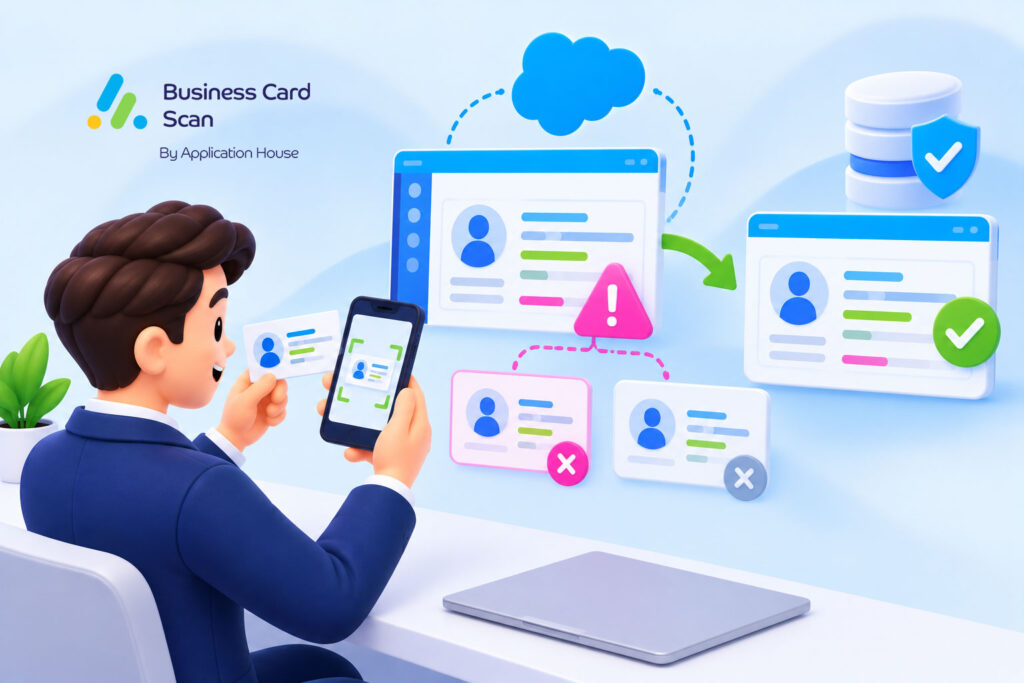
Why Use Salesforce Native Duplicate Rules?
Your sales team may meet the same prospect at different events or receive the same contact details from several sources. You can use Salesforce native Duplicate Rules to help identify matching records and manage potential duplicates according to your Salesforce configuration.
Identify Potential Duplicate Records
You can use Salesforce Duplicate Rules to check for potential matches when your team creates or updates records. Your Salesforce settings determine how these potential duplicates are handled.
Keep Your Contact Data Organised
You can help your team maintain more consistent Salesforce records by identifying potential duplicates. Your representatives can spend less time working with repeated contact entries and more time managing prospect relationships.
Support Accurate Business Card Scanning
You can connect your business card scanning process with your Salesforce duplicate management setup. Your existing rules can help your team identify potential matches when scanned details are used to create or update Salesforce records, depending on your configuration.
Explore our Business Card Scanner App on Salesforce AppExchange to discover its features and capabilities.
How the Review Form Shows Possible Duplicates
You can review possible duplicate records directly on the business card scanning review form before saving. Your app checks your Salesforce Duplicate Rules and displays any existing records it finds in the section for the relevant object, helping your representative decide what happens next.
See Each Possible Duplicate at a Glance
You can view each possible duplicate with its name, the fields your Salesforce administrator has chosen to display and a confidence score. Your review form highlights fields that match the scanned card and fields that differ, while showing when each record was last updated.
Choose the Record to Update
You can see how many possible duplicates were found in the list heading and select the record you want to update. Your selected record then appears in an updating section with its name, making it clearer which existing record will be saved.
Create a New Record When It Is a Different Person
You can choose to create a new Contact instead when your administrator allows this option. Your representative can use this choice when two people share a name but are different individuals.
Nothing Is Saved Until Every Choice Is Made
You can make a separate choice for each object that requires a decision, such as Account and Contact. Your save option remains unavailable until every required section has a selection, helping prevent accidental duplicate creation.
Let the App Choose When You Prefer
You can ask your administrator to configure the app to use Ask the User, Highest Confidence or Newest Record for duplicate selection. Your review form can then either let your representative choose or identify the existing record selected by the configured rule.
Your Salesforce Settings Stay in Charge
You can continue to follow your Salesforce duplicate management settings throughout the review process. Your Duplicate Rules still apply, so a rule configured to block a save continues to block it. Your administrator can also configure the minimum confidence and the number of possible duplicates displayed on the Salesforce Duplicate Rules tab of the matching rule.
How Salesforce Duplicate Rules Support Your Workflow
You can use Salesforce native Duplicate Rules alongside your business card scanning process to help manage contact information more effectively.
Check for Existing Leads and Contacts
You can configure Salesforce matching rules and Duplicate Rules to identify potential matches against your existing records. Your team can use the results to decide how to manage a new business card record.
Manage Potential Duplicates
You can configure your Salesforce Duplicate Rules to allow, alert or block record creation or updates in supported situations. Your Salesforce administrator can choose the appropriate behaviour for your organisation’s needs.
Maintain Your Existing Salesforce Setup
You can use Salesforce’s native duplicate management features as part of your existing data management process. Your administrator can review the rules and matching criteria that best suit your team’s workflow.
Use Salesforce Native Duplicate Rules: A Practical Example
You can meet a prospect at an exhibition and scan their business card, only to discover that your Salesforce organisation may already contain their details.
Your review form can show potential matching records with the available comparison fields and confidence scores. Your representative can select an existing record to update or create a new Contact if the people are different and the option is permitted by your configuration.
Improve Your Salesforce Data Management with Application House
You can combine business card scanning with Salesforce native Duplicate Rules to support a more organised sales workflow. Your review form helps your team assess possible matches before saving, while your Salesforce configuration determines how duplicate records are handled.
You can explore Application House business card scanning features to see how your team can capture contact information and work within your existing Salesforce processes.