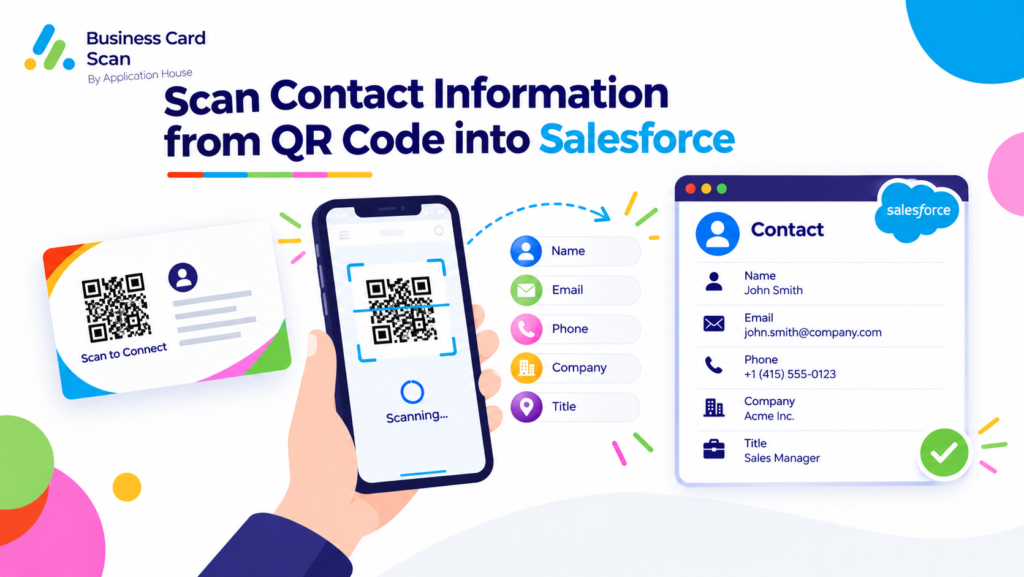
Scan Contact Information from QR Code into Salesforce
You may meet your customer, prospect, partner or event visitor who shares contact information through a QR code instead of handing you a traditional business card.
You can use Application House Business Card Scan App to scan supported contact QR codes and digital business card links directly from your Salesforce Mobile App.
You can review your captured information and use your configured Salesforce process to create or update the records your organisation needs.
You can turn your QR code exchange into useful Salesforce customer data instead of leaving your contact information on an individual phone.
What Contact Information Can You Scan from a QR Code
You may receive a QR code that contains contact information or provides your digital business card link.
You can use your QR Code Scan to capture the supported information contained in your code and bring your available details into your Salesforce process.
You can use your captured information according to the objects, fields and relationships your administrator has configured.
You can therefore use your QR code as the starting point for your Salesforce relationship rather than treating your scan as simply opening another code on your phone.
Contact QR Codes with the Salesforce Mobile App
You can use your phone camera through your Salesforce Mobile App when your customer presents a supported contact QR code.
You can scan your code while your customer is standing with you and continue directly into your Salesforce review process.
You can reduce your need to switch between separate contact scanning applications and your CRM.
You can keep your contact capture close to the Salesforce process your sales team already follows.
Capture a QR Code During a Customer Meeting
You may finish your sales meeting and have your prospect display a QR code containing their contact information.
You can scan your code before your meeting ends and capture your available details while your introduction is still fresh.
You can move your new relationship towards the appropriate Salesforce record instead of asking your salesperson to remember to enter your contact later.
Explore our Business Card Scanner App on Salesforce AppExchange to discover its features and capabilities.
Scan Digital Business Card Links from QR Codes
You may have your customer share a digital business card by displaying a QR code rather than displaying the full card itself.
You can use your QR Code Scan when your supported code contains a digital business card link.
You can keep your captured link available as part of your Salesforce process instead of leaving your digital business card disconnected from your CRM.
You can use your QR based contact exchange as another way to move your customer relationship into Salesforce.
Use Your QR Code at Networking Events
You may meet your prospect at a networking event where your person displays a contact QR code from their phone.
You can scan your code and capture your available contact information without needing your prospect to carry a printed business card.
You can keep your networking relationship available to your wider sales team instead of storing your new contact only on one user’s device.
Turn Your QR Code Scan into Salesforce Records
You may want your QR Code Scan to do more than simply capture your person’s name or contact details.
You can configure your scan around the Salesforce records your business actually needs.
You can create your Lead, Contact, Contact and Account, Campaign Member or another configured Salesforce record from your captured information.
You can also map your scanned details into your chosen fields and relate your records according to your Salesforce process.
Create Lead from QR Code Scan
You may scan your QR code from a person who is completely new to your business.
You can create your Lead when your configured Salesforce process treats your captured person as a new sales prospect.
You can move your new contact into your normal qualification process instead of leaving your QR code interaction outside Salesforce.
You can give your sales team a prospect your team can own, follow up and progress.
Create Contact from QR Code Scan
You may scan your QR code from another stakeholder within a company your organisation already knows.
You can create your Contact when your configured process needs your person represented within your existing customer relationship.
You can make your new stakeholder visible to your account team instead of keeping your person’s details only with the employee who scanned your code.
You can strengthen your shared customer knowledge as your relationship expands.
Create Contact and Account from QR Code Scan
You may scan your QR code from a person whose company and contact are both new to your Salesforce organisation.
You can create your Contact and Account when your configured process requires both records.
You can relate your Contact to your Account so your new person enters Salesforce with your organisation context.
You can give your sales team a useful company relationship rather than simply another isolated contact.
Create Campaign Member from QR Code Scan
You may scan your contact QR code during your exhibition, conference, seminar or another marketing activity.
You can use your configured Campaign Member process when your captured person needs to be connected with your Salesforce Campaign.
You can update your existing Contact and add your person to your Campaign when your Contact is found, or you can use your Lead process when your Contact is not found.
You can keep your QR contact capture connected with the marketing activity that generated your conversation.
Create Any Salesforce Record from QR Code Scan
You may have your Salesforce organisation configured around records beyond your standard Lead, Contact and Account.
You can use your QR Code Scan with any standard or custom Salesforce object your administrator can access and create through your configured scan.
You can map your captured information into your chosen Salesforce fields and relate your records around your own business process.
You can make your QR Code Scan fit your Salesforce data model instead of forcing your business into one fixed record structure.
Check Existing Salesforce Records Before You Create Another
You may scan a QR code from someone your organisation has already met.
You can use your configured Salesforce Duplicate Rules or app matching rules to check your captured person against your existing Salesforce data.
You can review your possible existing records before your final save when your configured process requires your choice.
You can update your existing relationship where appropriate instead of automatically creating another version of your same customer.
Use Find More Details After Your QR Code Scan
You may capture your person’s name, company, title or digital business card link while your QR code does not contain every detail your sales team would find useful.
You can use Find More Details where your administrator has enabled it to look for additional public information using your captured details.
You can keep your scanned or typed information unchanged because your additional information is used to fill your blank fields rather than overwrite your existing values.
You can review your additional information before your Salesforce save.
Use QR Code Scan for Faster Event Follow Up
You may collect several useful contacts during your conference or exhibition where your visitors increasingly share information through QR codes.
You can capture your visitor’s supported contact code during your conversation rather than writing your person’s details down for later.
You can connect your captured person with your Salesforce sales or Campaign process while your meeting still has clear business context.
You can give your sales team useful customer information for your next action without depending on manual data entry after your event.
Keep Your QR Code Scan Focused on Contact Information
You may use QR codes for many purposes across your everyday life, but your Business Card Scan App is focused on bringing useful business contact information into Salesforce.
You can use your app for supported contact codes and digital business card links rather than treating your app as a general QR utility.
You can keep your scanning process connected with your customer, prospect or partner relationship.
You can make your QR code valuable because your captured information becomes part of the Salesforce process your business actually uses.
QR Code Scan, Barcode Scan and Badge Scan
You may receive your business information through different formats depending on your customer or event.
You can use your QR Code Scan when your person shares supported contact information or a digital business card link through a QR code.
You can use your Barcode Scan when your visitor information is available through a supported barcode and your configured process needs that information captured.
You can use your Badge Scan when your event visitor’s printed badge contains the information your team needs to capture.
You can keep each scanning method focused on its own business situation while your Salesforce process provides a consistent destination for your captured information.
Scan Contact Information from QR Code into Salesforce with Application House
You can use Application House Business Card Scan App when your prospect, customer, partner or visitor shares contact information through a supported QR code.
You can scan your contact code or digital business card link using your Salesforce Mobile App and review your captured information before your final save.
You can create your Lead, Contact, Contact and Account, Campaign Member or another configured Salesforce record according to your business process.
You can use your existing Salesforce objects, fields, relationships and duplicate controls around your captured information.
You can turn your simple QR code exchange into useful Salesforce data that your wider business can use.
Frequently Asked Questions
1. How can you scan contact information from a QR code into Salesforce?
You can use Application House Business Card Scan App to scan supported QR codes containing digital contact information. The app captures available details such as name, company, job title, email address and phone number, allowing you to review the information and create Salesforce records through your configured scanning process.
2. Can you create Salesforce Leads and Contacts from QR code scans?
Yes. You can configure your QR Code Scan to create Salesforce Leads or Contacts from captured contact information. You can map the available details to your selected Salesforce fields and review the records before saving them.
3. Can you scan digital business cards using QR codes directly into Salesforce?
Yes. You can scan supported digital business card QR codes to capture contact information and bring it into your Salesforce workflow. This helps you save new business connections without manually typing the details from someone’s digital business card.
4. Can you create multiple Salesforce records from one QR code scan?
Yes. You can configure your QR Code Scan to prepare multiple Salesforce records from one scan, including Leads, Contacts, Accounts, Campaign Members and supported custom objects. You can review the prepared records and their relationships before saving.
5. How can you avoid duplicate Salesforce Contacts when scanning QR codes?
You can use Salesforce Duplicate Rules or Application House app matching rules to identify existing records during your scanning process. You can review potential matches and select the appropriate existing Salesforce record instead of unnecessarily creating another Contact or Lead.
6. Can you add QR code scanned contacts to Salesforce Campaigns?
Yes. You can configure your scanning workflow to add captured Leads or Contacts as Salesforce Campaign Members. This helps you connect contacts collected through digital business cards, networking events and business meetings to the relevant Salesforce Campaign.