Create Multiple Salesforce Records from One Scan
Your customer interaction rarely represents only one piece of business information.
You may meet a new decision maker, identify the company your person works for, agree your next sales action and need your person associated with an event or another Salesforce business record.
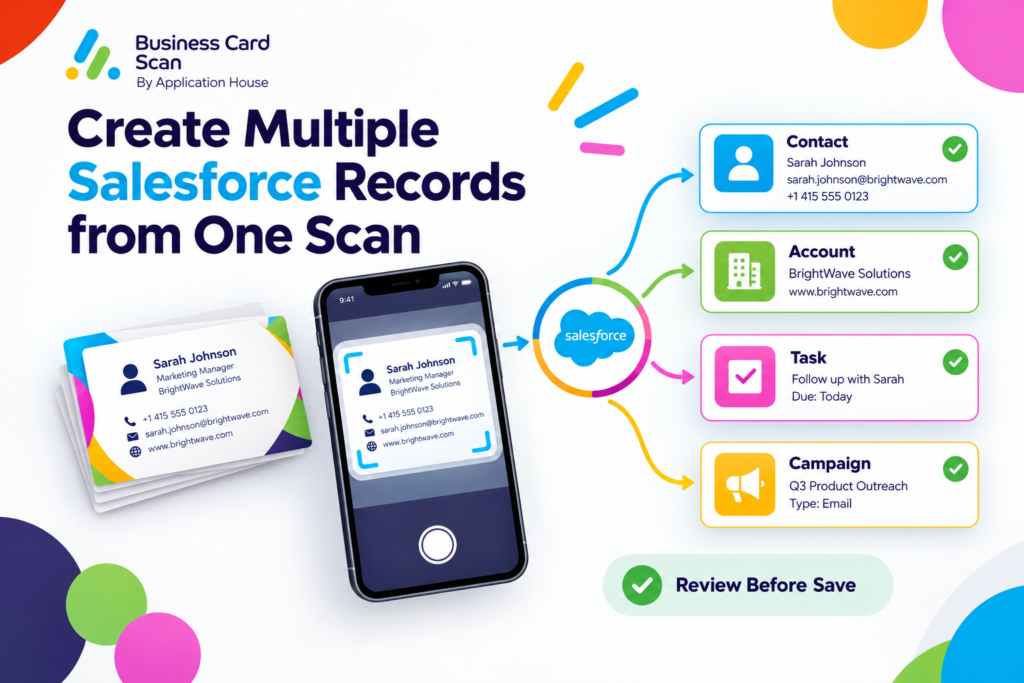
You can use Application House Business Card Scan App to prepare multiple Salesforce records from one scan and review your records together before you save.
You can therefore turn your Business Card Scan, QR Code Scan, Barcode Scan or Badge Scan into a complete Salesforce business action rather than simply creating another name and telephone number.
Why Create Multiple Salesforce Records from One Scan
You may need several Salesforce records to represent what actually happened during your customer interaction.
You may need your Account to represent the organisation, your Contact to represent the person and your Task to represent what your sales representative agreed to do next.
You may also need your Campaign Member, Opportunity or your own custom Salesforce record when your business process requires additional context.
You can prepare your required records from the same scan instead of saving one record and asking your user to build the rest manually afterwards.
You can make your scan represent the complete business interaction while your user still reviews your information before anything is saved.
Create and Review Multiple Salesforce Records from One Business Card Scan
You may receive one business card, but your Salesforce process may need several connected records from your conversation.
You can use one Business Card Scan to prepare the records your configured business process requires.
You can review each Salesforce record separately before your final save, so you can see what your scan intends to create or update.
You can check your Account information, your person’s details and your next sales action together instead of treating each record as a separate administrative job.
Turn One Business Card into a Complete B2B Sales Record
You may sell commercial services to companies where your salesperson needs more than your prospect’s contact details.
You can use yourBusiness Card Scan to prepare your Account for the company, your Contact for the decision maker and your Task for the next sales action when your scan has been configured that way.
You can review your records while your conversation is still meaningful to you and correct your information before your records are saved.
You can give your sales team a more useful Salesforce starting point because your scan captures your person, your organisation and your next action together.
Construction Supplier Sales Example
You may supply building products to contractors and meet your procurement manager during your project meeting.
You can use your Business Card Scan to capture your procurement manager while your configured scan prepares your Contact and your related Account.
You can also prepare your Task or your own project interest record when your Salesforce process needs your representative to record what your customer wants next.
You can review your related records before your save so you can confirm that your procurement manager is connected with your correct company and commercial activity.
You can make one business card represent your real project sales conversation rather than only another contact entry.
Explore our Business Card Scanner App on Salesforce AppExchange to discover its features and capabilities.
Existing Customer Expansion Example
You may already have your customer organisation in Salesforce when you meet another stakeholder from your account.
You can use your Business Card Scan to work with your existing Account while your scan prepares your new Contact and your next sales record.
You can review whether your Account will be used or updated and whether your Contact will be new before your information is saved.
You can keep your account development activity around your existing customer relationship instead of creating disconnected information from your new business card.
Create and Review Multiple Salesforce Records from One QR Code Scan
You may receive your prospect’s details through a QR Code Scan instead of through a printed business card.
You can use your QR Code Scan as another way to bring your person’s information into the Salesforce business process your administrator has configured.
You can prepare and review your required Salesforce records from your captured information instead of treating your QR code as only a digital address book entry.
You can keep your customer process consistent whether your person gives you a printed card or shows you a digital contact code.
Partner Sales Example
You may attend your technology partner meeting where your new partner manager shares your contact details through a QR code on a phone.
You can use your QR Code Scan to capture your person while your configured Salesforce process prepares the records your partner team needs.
You may review your Contact and Account together while your custom partner interest or your follow up Task provides the commercial context your team needs.
You can make your digital introduction part of your actual partner sales process instead of leaving your QR contact as a standalone person.
Customer Meeting Example
You may visit your existing customer where your new department head shares a digital business card through a QR code.
You can use your QR Code Scan to capture your new stakeholder and review your person’s Salesforce information against your existing organisation.
You can prepare your related records through your configured scan while you confirm what will be created and what will be updated.
You can keep your new stakeholder connected with your existing customer relationship from your first Salesforce save.
Create and Review Multiple Salesforce Records from One Barcode Scan
You may receive contact information through a Barcode Scan when your supported barcode contains contact or digital business card information.
You can use your Barcode Scan to bring your captured information into your Business Card Scan App workflow.
You can review the Salesforce records your configured scan prepares before you save your business data.
You can make your barcode capture useful to your wider business process rather than treating your scanned code as an isolated value.
Membership and Business Networking Example
You may attend your professional membership event where your attendee information is presented through a supported barcode.
You can use your Barcode Scan to capture your available contact information and continue through your configured Salesforce process.
You can review your person and your related business records before your save when your scan is configured to prepare more than one record.
You can give your business development team usable Salesforce context instead of leaving your captured information separate from your customer data.
Create and Review Multiple Salesforce Records from One Badge Scan
You may meet hundreds of people at your conference or industry event, but your Badge Scan should do more than capture a person’s name.
You can use your Badge Scan to capture your attendee information and prepare the Salesforce records your event sales process needs.
You can review your records together before saving so you can confirm your person, your organisation and your related sales activity while your conversation is still fresh.
You can make your event interaction enter Salesforce as a useful commercial relationship rather than as an isolated attendee record.
Create Your Contact or Lead and Campaign Member Together
You may need your scanned attendee to become part of your Salesforce Campaign as well as part of your customer data.
You can use your Badge Scan with your configured process to work with your Contact where your person already exists or your Lead where your process requires a new prospect.
You can also connect your person with your Campaign through the same wider scan process when your configuration requires it.
You can review what your scan is preparing before your final save instead of completing your event administration through several separate screens.
Exhibition Sales Qualification Example
You may exhibit at an engineering conference where your salesperson speaks with a procurement director about a specific product requirement.
You can use your Badge Scan to capture your attendee while your Salesforce process prepares the records your sales team needs.
You may need your person represented as your Contact or Lead, your organisation represented by your Account and your event relationship represented through your Campaign.
You can also prepare your Task when your sales process requires your representative to arrange your next conversation.
You can review your records together so your event conversation becomes structured Salesforce activity rather than only another attendee name.
Review Every Salesforce Record Before You Save
You gain more control when you can see what your scan is preparing before your records become part of your Salesforce data.
You can review each configured record in its own section on your review form.
You can see whether your record will be created as new or whether your existing record will be updated.
You can check your person’s information and your related business records together before you make your final save decision.
You can correct your information at the point where your business context is still clear instead of discovering your problem later through your CRM reporting.
Check Your Record Relationships Before Save
You may have captured your person correctly but connected your person with the wrong organisation or business process.
You can use your review stage to check the records your scan is preparing before your final Salesforce save.
You can confirm that your person, company and related records represent the customer interaction you actually had.
You can protect your Salesforce data quality by reviewing your complete business outcome rather than checking only your name and email address.
See What Your Scan Created or Updated
You may want immediate confirmation after your multiple Salesforce records are saved.
You can see your records that were created or updated after your scan has completed its save.
You can open your saved records when you need to continue your sales work.
You can move from your scan into your next business activity with a clear understanding of what your Salesforce process has done.
Use Different Record Combinations for Different Business Processes
You may not need the same Salesforce records for every type of customer interaction.
You can configure your business card process around one combination of records while your event process may require another combination.
You may need your Contact, Account and Task for your customer meeting while your event process may need your Contact or Lead together with your Campaign Member.
You may also need your own custom Salesforce records when your organisation has built an industry specific application around your sales process.
You can keep your scanning process aligned with the way your different teams actually work.
Software Sales Process
You may have your software salesperson meet your chief technology officer during your customer meeting.
You can configure your scan so your customer interaction prepares your Contact, Account and your next sales activity.
You can review your Salesforce records together before your salesperson saves your conversation into your wider sales process.
You can give your account team useful business context from your first scan rather than only your person’s contact details.
Recruitment Business Process
You may have your recruitment consultant meet your hiring manager while your business already works with your organisation.
You can use your scan to prepare your Contact while your existing Account provides your company relationship.
You can also use your configured custom recruitment record or your Task when your business process needs your hiring requirement connected with your new person.
You can review your records before your save so your consultant can confirm that your hiring manager is connected with your correct client relationship.
Professional Services Business Process
You may have your consultant receive your finance director’s details during your client workshop.
You can use your scan to prepare your person’s Salesforce record and connect your person with the records your consultancy uses for your client relationship.
You can prepare your next Task when your consultant has agreed a follow up action during your meeting.
You can review your records together before your save so your business development context is available to your wider client team.
One Scan Can Represent One Complete Business Interaction
You may think of a scan as a way to capture your name, email address and telephone number.
You can gain much more value when your scan represents the business event behind your contact information.
You can capture who your person is, which organisation your person belongs to, why your team met your person and what your team needs to do next.
You can prepare your Salesforce records together and review your business outcome before your data is committed.
You can reduce the gap between collecting your contact information and making your information useful to your business.
Use One Setup Across Business Card Scan, QR Code Scan and Badge Scan
You may receive your customer information in several different forms while your Salesforce business process remains the same.
You can configure your objects, fields and matching rules once for your Business Card Scan, QR Code Scan and Badge Scan workflow where your scan configuration applies.
You can give your users a more consistent process because your method of capturing your person’s details does not need to change your underlying Salesforce record structure.
You can focus your configuration on what your business wants to create rather than building another process simply because your contact arrived in another format.
Keep the Power in Your Hands
You understand which Salesforce records make your customer interaction useful to your organisation.
You can decide which records your scan needs and how your records fit your own business process.
You can review your prepared records before your final save instead of letting your scanner make your business decisions invisibly.
You can give your users a simple scanning experience while your administrator keeps control over your Salesforce record structure.
Create Multiple Salesforce Records from One Scan with Application House
You can use Application House Business Card Scan App when your customer interaction needs more than one Salesforce record.
You can use your Business Card Scan, QR Code Scan, Barcode Scan or Badge Scan to capture your available information and continue through your configured Salesforce process.
You can review your multiple records together, see what will be created or updated and save your business information when you are satisfied with your result.
You can turn one scan into the Salesforce records your business needs while keeping your review, your business context and your final decision in your hands.
Frequently Asked Questions (FAQs)
1. Can I create multiple Salesforce records from one business card scan?
Yes. You can use Application House Business Card Scan App to create multiple related Salesforce records from a single business card scan. Depending on your configuration, you can create or update Contacts, Leads, Accounts, Tasks, Campaign Members and custom Salesforce records.
2. How can I create a Salesforce Contact and Account from one business card?
You can scan a business card using the Business Card Scan App and configure your process to prepare both a Contact and its related Account. You can review the captured information and record relationships before saving them to Salesforce.
3. Can I create a Salesforce Task automatically while scanning a business card?
Yes. You can configure your scanning process to prepare a Salesforce Task alongside your Contact or Lead. This helps your sales representative record the next follow-up action while capturing a new business contact.
4. Can I create a Salesforce Campaign Member from the same business card scan?
Yes. You can configure your scan to create or associate a Lead or Contact with a Salesforce Campaign through a Campaign Member record. This is useful when capturing prospects at exhibitions, conferences and networking events.
5. Can I create multiple Salesforce records from one QR code scan?
Yes. You can use QR Code Scan to capture available contact information and prepare multiple Salesforce records through your configured process. You can review the records and their relationships before saving.
6. Can I create multiple Salesforce records from a barcode or event badge scan?
Yes. You can use supported Barcode Scan and Badge Scan workflows to capture available attendee or contact information and prepare multiple Salesforce records. The records created depend on your configured Salesforce process and the information available from the scan.
7. Can I create custom Salesforce objects from one scan?
Yes. You can configure the Business Card Scan App to prepare custom Salesforce objects alongside standard objects. Your administrator can define the required fields and record relationships according to your business process.
8. Can I review all Salesforce records before saving them?
Yes. You can review each prepared Salesforce record in its own section before the final save. This allows you to check contact details, Account relationships, Campaign Members and other configured records before committing your information.