Scan Email Signatures into Salesforce Records
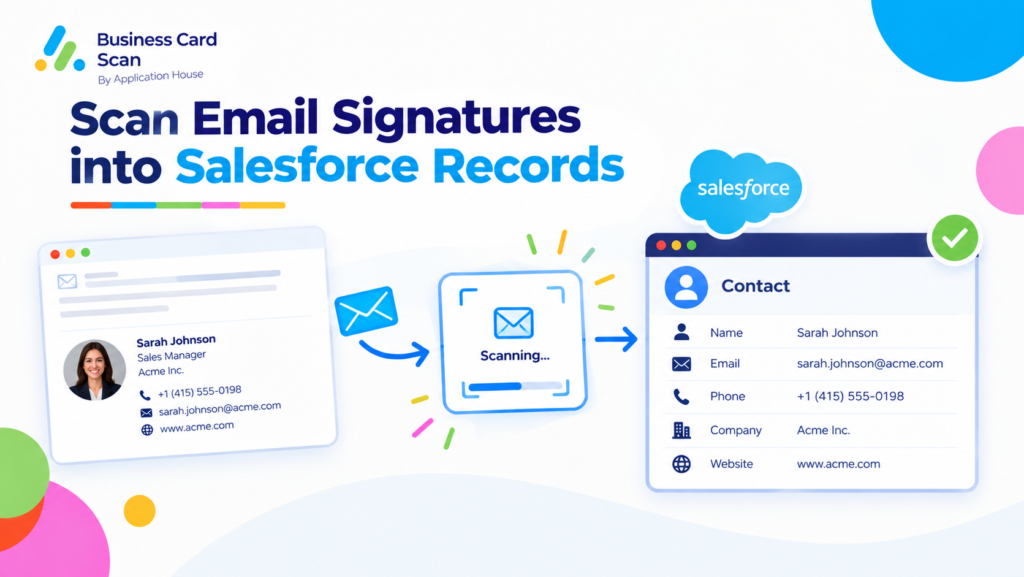
You can use Application House Business Card Scan App to read your email signature and bring your available information into your configured Salesforce process.
You can create your Lead, Contact, Contact and Account, Campaign Member or another configured Salesforce record according to what your business needs.
Scan Email Signatures into Salesforce Records
You may receive valuable customer and prospect information every day without receiving a physical business card.
You may already have your person’s name, company, job title, telephone number, email address and other useful information inside your email signature while your Salesforce records remain incomplete.
You can use Application House Business Card Scan App to read your email signature and bring your available information into your configured Salesforce process.
You can create your Lead, Contact, Contact and Account, Campaign Member or another configured Salesforce record according to what your business needs.
You can turn your everyday email correspondence into useful Salesforce business data without asking your user to copy each contact detail manually.
How to Scan Email Signatures into Salesforce Records
You can use the Business Card & Documents option when your contact information is available through your email signature instead of a printed business card.
You can let your Business Card Scan App identify your main person from your available information and prepare your captured details for review.
You can check your captured information before your records are saved, so you remain in control of what enters your Salesforce organisation.
You can then save your information through the Salesforce objects, fields and relationships your administrator has configured for your business process.
Create Lead from Email Signature
You may receive your first contact with a new prospect through email before your salesperson has ever met your person.
You can scan your email signature and create your Salesforce Lead when your configured business process treats your person as a new prospect.
You can capture your available name, company, telephone number, job title and other information instead of asking your salesperson to enter your prospect manually.
You can bring your new enquiry into your normal Salesforce Lead process while your commercial conversation continues through email.
Capture a New Sales Enquiry
You may receive an email from your operations director asking for your pricing, product information or demonstration.
You can scan your sender’s email signature and create your Lead while your enquiry is still commercially relevant.
You can give your sales team a Salesforce record that your team can own, qualify and progress instead of leaving your prospect only inside one salesperson’s inbox.
You can make your email enquiry visible to your wider sales organisation while your representative continues your conversation.
Capture a Request for Quotation
You may receive your request for quotation from a procurement manager your sales team has never worked with before.
You can scan your procurement manager’s email signature and create your Lead according to your configured Salesforce process.
You can make your new commercial enquiry available for your sales reporting and follow up rather than depending on your salesperson to remember your email later.
You can give your team a clear starting point for your new business relationship.
Create Contact from Email Signature
You may already know the company that has emailed you while your individual sender is new to your organisation.
You can scan your email signature and create your Contact when your Salesforce process needs your person represented as a Contact.
You can place your captured information into the Salesforce fields your organisation already uses.
You can make your new stakeholder available to your wider account team instead of leaving your person’s details inside one employee’s mailbox.
Add a New Stakeholder to Your Existing Customer
You may already have a long term relationship with your customer when a new finance director, operations manager or technology manager emails your business.
You can scan your new stakeholder’s email signature and create your Contact according to your configured Salesforce process.
You can give your account manager visibility of your new person while your existing customer relationship continues.
You can build a more complete view of your customer because your important stakeholders become available through Salesforce rather than remaining hidden inside your email history.
Capture a New Decision Maker
You may begin your sales opportunity with one person and later receive an email from another decision maker involved in your purchase.
You can capture your new decision maker from your email signature and add your person to your Salesforce customer data.
You can help your sales team understand your wider buying group because your additional stakeholder becomes part of your shared CRM information.
You can keep your important commercial relationships visible even when your new person was introduced digitally.
Create Contact and Account from Email Signature
You may receive an email from a person and company that your Salesforce organisation does not yet contain.
You can configure your scan to create your Contact and Account when your business process requires both records.
You can capture your person’s information while your company becomes part of your Salesforce customer structure.
You can relate your Contact with your Account so your sales team understands who your person works for instead of storing your new person without your company context.
New B2B Customer Enquiry
New B2B Customer Enquiry
Professional Services Example
You may run your consulting business and receive an email from a finance director at a company your organisation has never worked with before.
You can scan your email signature and create your Account for your company and your Contact for your finance director when your configured process requires both.
You can relate your Contact to your Account so your business development team immediately understands your commercial relationship.
You can continue your sales conversation using Salesforce data that reflects both your person and your organisation.
Create Campaign Member from Email Signature
You may receive your person’s email after your webinar, conference, marketing event or another Campaign activity.
You can scan your email signature and use your captured person within your Salesforce Campaign process when your configured scan includes Campaign Member.
You can connect your person with your marketing or event activity instead of leaving your response separated from your Campaign data.
You can give your marketing and sales teams a clearer view of who your organisation is engaging with after your Campaign.
Webinar Follow Up Example
You may run your product webinar and receive an email afterwards from your attendee asking for your demonstration.
You can scan your attendee’s email signature and bring your person’s available contact information into your Salesforce process.
You can connect your person with your Campaign when your scan has been configured for your Campaign Member process.
You can help your sales team understand that your enquiry came from your webinar rather than treating your person as an unrelated contact.
Exhibition Follow Up Example
You may receive your email from someone your salesperson spoke with at an exhibition after your event has finished.
You can scan your sender’s signature and use your configured Campaign process to keep your person connected with your event.
You can make your later email conversation part of your Campaign history even when your person’s useful contact information arrives after your physical event.
You can give your sales team better business context around why your person is now in Salesforce.
Create Any Salesforce Record from Email Signature
You may use Salesforce in a way that goes beyond Lead, Contact, Account and Campaign Member.
You can configure your Business Card Scan App to use any standard or custom Salesforce object that your administrator can access and create.
You can make your email signature scan create the records your organisation actually needs instead of forcing every email contact into one fixed CRM structure.
You can map your captured information to your chosen Salesforce fields and relate your records according to your business process.
Create Your Own Custom Business Record
You may have your organisation using a custom Distributor, Property, Membership, Client, Dealer, Supplier or another Salesforce object.
You can configure your scan so your email signature information becomes part of the Salesforce process your industry actually uses.
You can create your standard and custom records according to your own Salesforce design.
You can make your scanner fit your business rather than changing your Salesforce model to fit your scanner.
Recruitment Business Example
You may use your Salesforce organisation to manage hiring managers, client Accounts and your own recruitment records.
You can receive your new hiring manager’s information through an email signature and use your configured scan to create the Salesforce records your recruitment process requires.
You can relate your person to your client information while your custom recruitment data remains part of your existing business structure.
You can make your inbox another useful source of customer information without creating a separate contact database.
Property Business Example
You may receive your email from an investor, landlord, developer or property manager while your Salesforce organisation uses custom Property or Development records.
You can capture your person’s email signature and use your configured Salesforce records around your property process.
You can relate your person with your relevant business records instead of storing your contact as an isolated name.
You can make your email signature support your actual property relationship rather than only your contact data.
Turn Everyday Customer Emails into Salesforce Data
You may already possess valuable information because your customer places your contact details at the bottom of every email.
You can use your email signature instead of asking your salesperson to type information your customer has already supplied.
You can move your useful information from your email communication into the shared Salesforce environment your team already uses.
You can reduce your dependence on individual inboxes as the only place where your customer relationships are visible.
Capture People You May Never Meet Face to Face
You may conduct your complete sales process through email, telephone calls and online meetings without ever receiving your person’s physical business card.
You can use your email signature as another source for your Salesforce contact information when your customer relationship begins digitally.
You can keep your remote sales process structured while your customer information enters the same Salesforce environment your wider team uses.
You can make your Business Card Scan App useful beyond your traditional printed business card.
Remote Software Sales Example
You may demonstrate your software online to your prospect in another country without your salesperson ever visiting your customer’s office.
You can receive your commercial director’s follow up email and scan your available signature information into your Salesforce process.
You can create your appropriate Salesforce records without waiting for your prospect to provide a physical business card.
You can give your team shared customer information even when your entire relationship remains digital.
Use Email Signature Scan for Account Expansion
You may have your existing customer in Salesforce while your relationship expands to additional departments and stakeholders.
You can scan your new stakeholder’s email signature when your person becomes commercially important to your account.
You can add your additional person to your Salesforce process and make your wider buying group visible to your account team.
You can support your account expansion because your new relationships do not remain hidden inside private email conversations.
Enterprise Software Account Example
You may begin your customer relationship with your technology team before your procurement and finance teams become involved.
You can receive your finance director’s email later in your sales cycle and capture your person’s information from your signature.
You can add your new stakeholder to your Salesforce process while your wider account relationship remains available to your team.
You can help your account executive understand who is influencing your purchase as your commercial conversation develops.
Capture New Contacts from Customer Service Emails
You may receive your customer email through your support, account management or service team rather than directly through your salesperson.
You can identify commercially useful contact information in your email signature when your person should become part of your shared Salesforce customer data.
You can bring your new stakeholder into your configured Salesforce process instead of leaving your person’s information known only to your service user.
You can help your organisation maintain a broader customer relationship across your sales and service teams.
Capture Partner and Referral Contacts from Email Signatures
You may work with resellers, distributors, brokers, advisers or referral partners who communicate with your team mainly through email.
You can scan your new partner contact’s email signature and bring your person into the Salesforce records your channel team uses.
You can connect your contact with your wider partner relationship rather than relying on individual employee inboxes.
You can make your partner data easier for your organisation to share when your responsibilities move between team members.
Channel Partner Example
You may receive your first email from a new partner manager after your colleague introduces your two organisations.
You can scan your partner manager’s email signature and create your configured Salesforce records before your formal meeting takes place.
You can give your channel team access to your contact information from the beginning of your relationship.
You can make your partner management process start from information your person has already provided.
Use Email Signature Scan When Contact Details Change
You may already have your person in Salesforce while your latest email signature shows a new job title, telephone number or company detail.
You can use your email signature as another source of current business information for your Salesforce process.
You can review your captured information before you decide what your scan should save.
You can help your Salesforce data remain useful when your customers change roles or update their contact details.
Customer Changes Role
You may know your person as your sales director while your latest signature shows your person has become your managing director.
You can capture your new information and review your existing Salesforce data through your configured scan.
You can help your wider team work with the information your customer is currently providing.
You can make your ordinary email correspondence another useful source for maintaining your customer data.
Explore our Business Card Scanner App on Salesforce AppExchange to discover its features and capabilities.
Review Your Email Signature Before Saving
You may not want your captured email information to enter Salesforce without your user checking it first.
You can review your captured details before your Salesforce records are saved.
You can correct your information where your email signature contains something your user wants to change or clarify.
You can remain involved in your final data decision instead of turning your email signature into an invisible automatic import.
You understand which emails represent valuable customer relationships and which messages do not need another Salesforce record.
You can decide when your email signature should become useful Salesforce data.
You can choose whether your process needs your Lead, Contact, Contact and Account, Campaign Member or another standard or custom Salesforce record.
You can configure your fields and relationships while your user keeps control of your final review and save.
Configure Your Salesforce Fields for Email Signature Scan
You may store your person’s title, department, telephone number or another detail in Salesforce fields designed specifically around your organisation.
You can map your captured email signature information into your chosen Salesforce fields.
You can keep your existing Salesforce data model instead of creating another field structure simply for your scanned information.
You can put the Power in Your Hands because your organisation decides where your captured data belongs.
Scan Email Signatures into Salesforce Records with Application House
You can use Application House Business Card Scan App when your valuable customer information arrives through an email signature instead of a traditional business card.
You can create your Lead for your new prospect, your Contact for your new stakeholder, your Contact and Account for your new company relationship, or your Campaign Member when your person belongs to your marketing activity.
You can also create your own standard or custom Salesforce records when your business process requires something different.
You can capture your available information, review your data and save your records around the Salesforce process your organisation has chosen.
You can turn your everyday customer emails into useful Salesforce business data while keeping your record choice, your field configuration and your final decision in your hands.
Frequently Asked Questions (FAQs)
1. Can I scan email signatures directly into Salesforce?
Yes. You can use the Application House Business Card Scan App to capture contact information from email signatures and bring it into your configured Salesforce process. You can create Leads, Contacts, Accounts, Campaign Members or other configured Salesforce records.
2. How can I convert an email signature into a Salesforce Contact?
You can use the Business Card & Documents option in the Business Card Scan App to capture information from an email signature. Review the captured details and save them as a Salesforce Contact using your configured fields and process.
3. Can I create a Salesforce Lead from an email signature?
Yes. You can scan a prospect’s email signature and create a Salesforce Lead using available details such as name, company, job title, telephone number and email address. This helps your sales team manage new enquiries directly in Salesforce.
4. Can I create a Salesforce Contact and Account from one email signature?
Yes. You can configure the app to create both a Salesforce Contact and Account from an email signature. You can also relate the Contact to the appropriate Account to maintain your customer relationship information.
5. Can I scan email signatures from existing customers to add new stakeholders to Salesforce?
Yes. You can capture information from a new stakeholder’s email signature and create a Salesforce Contact. This helps your account management team maintain an updated list of decision-makers and other important contacts within existing customer organisations.
6. Can I create Salesforce Campaign Members from email signatures?
Yes. You can scan an email signature and connect the captured person with a Salesforce Campaign through your configured Campaign Member process. This is useful for tracking contacts generated through webinars, exhibitions, conferences and marketing activities.
7. Can I create custom Salesforce objects from email signatures?
Yes. You can configure the Business Card Scan App to create standard or custom Salesforce objects that your administrator has permission to access and create. You can also map captured information to your chosen Salesforce fields.
8. Do I need to enter email signature details manually into Salesforce?
No. You can use the Business Card Scan App to capture available contact information from an email signature instead of manually typing each detail into Salesforce. You can review the captured information before saving your records.