Desktop and Laptop Business Card Scan
You do not always receive your business cards when you are ready to work from your phone.
You may return to your office with a card from a customer meeting, receive your business card image from a colleague or need your sales operations team to process your contact information after an event.
Scan Business Cards from Your Desktop or Laptop
You do not always receive your business cards when you are ready to work from your phone.
You may return to your office with a card from a customer meeting, receive your business card image from a colleague or need your sales operations team to process your contact information after an event.
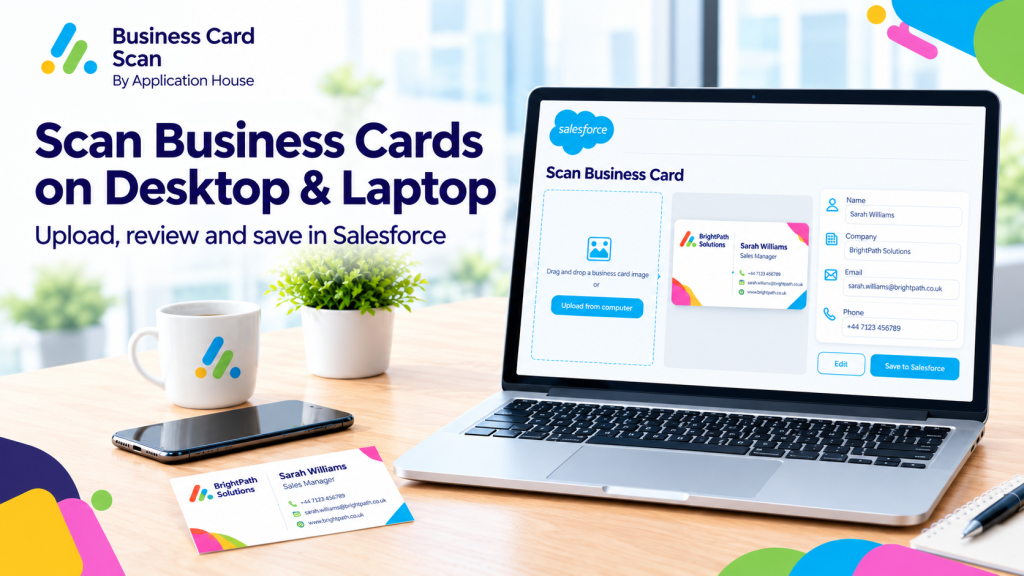
You can use Application House Business Card Scan App from your desktop or laptop by uploading or dragging your business card photo directly into Salesforce.
You can then review your captured information and continue through your configured Salesforce review and save process.
Process Your Business Cards When Your Sales Work Happens at a Desk
You may want to concentrate on your customer conversation during your meeting instead of completing your Salesforce administration in front of your prospect.
You can process your business card when you return to your desk and have your Salesforce customer data, Account history and sales information available.
You can upload your card image into Salesforce and decide how your new information should fit into your existing business process.
You can turn your physical business card or saved card photo into useful Salesforce data without asking your sales user to type every detail manually.
Give Your Sales Operations Team a Structured Handover
You may have your salesperson collect your business card while your sales operations team manages your CRM data quality.
You can let your authorised Salesforce user upload your card image from a desktop and review your captured details before your information is saved.
You can use your existing Salesforce data to decide whether your person already exists, which Account your person belongs to and which related records your business process requires.
You can keep your sales handover structured because your contact information enters Salesforce through the same configured process your organisation already uses.
Use Your Salesforce Business Data Before You Save
You can make better decisions when your business card is processed alongside your existing Salesforce data.
You can review your Account, Contact, Opportunity, Campaign or custom business records before you decide where your scanned information belongs.
You can use your existing customer history to avoid treating every new business card as a completely new relationship.
You can make your save decision with more commercial context because your Salesforce data and your scanned card are available within the same working environment.
Support Your Strategic Account Sales Process
You may already know the company on your business card even when the person is new to your sales team.
You can upload your new stakeholder’s card and relate your person to your existing Salesforce Account rather than creating another version of the company.
You can keep your existing Account history while your new Contact becomes part of your wider customer relationship.
You can give your account team a clearer picture of your buying group because your new decision maker becomes connected with the business data your team already uses.
Process Executive and Management Referrals
You may receive your business card from your director, consultant or senior manager after an executive meeting.
You can process your referral from your desktop without asking your executive to complete your Salesforce data entry.
You can upload your card image, review your prospect and connect your person with your correct Account, sales owner or related activity.
You can make your valuable executive introduction visible to your wider sales organisation instead of leaving your contact inside your executive’s wallet, email or phone gallery.
Support Your Partner and Channel Sales
You may sell through your distributors, resellers, brokers or implementation partners rather than using only a direct sales model.
You can configure your Business Card Scan App so your desktop scan creates the Salesforce records your channel process actually uses.
You can relate your new Contact to your partner Account and create your product interest, referral or custom partner record where your process requires it.
You can keep your partner data aligned with your commercial model instead of forcing your scanned person into a fixed Lead only process.
Process Your Event Contacts After the Event
You may want your sales representatives to spend their event time speaking with prospects instead of completing every Salesforce action beside your exhibition stand.
You can use your desktop or laptop after your event when your team wants to review your contact information with more Salesforce context.
You can upload your available business card image and check your prospect against your existing Accounts, Contacts, Campaigns and sales activity.
You can keep your event follow up connected with your wider Salesforce process instead of treating your event cards as a separate contact list.
Use Desktop Scanning for Hotel and Hospitality Sales
You may sell hotel software, payment technology, booking systems or managed services to hospitality organisations.
You can upload your hotel manager’s business card from your laptop and review your existing Hotel Account before your new person is saved.
You can relate your Contact to your existing hotel record and create your configured sales record for your product interest, follow up or other business process.
You can keep your sales history around the correct hotel instead of creating another company record every time your team receives a new business card.
Use Desktop Scanning for Manufacturing and Industrial Sales
You may sell equipment, software or professional services to manufacturers where your Salesforce data already contains factories, distributors, dealers or buying organisations.
You can upload your procurement manager’s business card from your desktop and review your existing customer or site information.
You can connect your person with your Account and your configured product interest, visit or sales record.
You can make your business card part of your industrial sales process instead of keeping your customer contact as separate information.
Use Desktop Scanning for Recruitment and Staffing
You may receive your hiring manager’s business card during your client meeting while your Salesforce organisation already contains your client Account, Vacancy or Recruitment Enquiry.
You can upload your card image and connect your person with your existing client information.
You can create or update your Contact and relate your person to your recruitment record according to your configured process.
You can help your recruitment team work from one customer history because your scanned contact becomes part of your existing Salesforce data.
Use Desktop Scanning for Property and Real Estate
You may work with your developers, landlords, investors, agents or property managers while your Salesforce organisation uses property specific records.
You can upload your business card image and connect your person with your Account, Property, Development or other configured Salesforce record.
You can map your scanned information into the fields your property team already uses and relate your records around your own business process.
You can keep your property sales data structured without forcing your user into a generic Lead only process.
Check Your Existing Salesforce Records Before Creating Another Record
You may already have your prospect or customer in Salesforce when you upload your business card image.
You can use Salesforce native built in Duplicate Rules through your Business Card Scan App where your administrator has configured them.
You can see your possible existing records on your review form and select your correct record before your scanned information is saved.
You can protect your existing customer history because your newly received business card does not automatically need to become another Lead or Contact.
Enrich Your Business Card When Information Is Missing
You may receive your business card with only your person’s name, company and job title.
You can use Find More Details where your administrator has enabled it to fill your blank information from public information.
You can keep your scanned or typed information unchanged because your enrichment fills only your blank fields.
You can review your additional information before you save and let your matching process run again using your fuller information.
Review Multiple Salesforce Records Before Saving
You may need your scan to create or update more than one Salesforce record.
You can review your Account, Contact, Task or other configured records together before your information is saved.
You can see whether your records will be created or updated and check your relationships before your final save.
You can make your desktop review part of your data quality process when your sales workflow involves several related records.
Create the Records Your Business Actually Uses
You do not need your desktop business card scan to end with one fixed Salesforce record type.
You can configure your scan to create the standard or custom Salesforce records your business process requires.
You can map your scanned information into your chosen Salesforce fields and give your configured fields fixed values where your process requires them.
You can relate your records together so your Contact, Account, Task and other business records follow the Salesforce data model your organisation already uses.
Keep Your Original Business Card Photo
You may want your team to see the original card your customer or prospect provided.
You can choose to keep your business card photo as a Salesforce File when your administrator has enabled that option for your record.
You can give your team a useful reference when your customer changes your title, company or contact information later.
You can compare your Salesforce information with your original source when your team needs to confirm what your customer actually provided.
Use Your Desktop and Mobile for Different Business Moments
You can use your Salesforce mobile experience when your salesperson wants to capture your card while standing with your prospect.
You can use your desktop or laptop workflow when your business process needs more review, more Salesforce context or another team member to complete your data capture.
You can choose your device based on your business situation while your Salesforce review and save process remains consistent.
You can avoid forcing your team into one working style when your customer interactions happen across meetings, offices, exhibitions and remote working.
Use Your Salesforce Mobile App for QR Codes and Barcodes
You can use your desktop and laptop workflow for your business card photo upload and drag process.
You can use your Salesforce mobile app when your sales process needs your QR code or barcode scanning capability.
You can choose the right capture method for your source while your Salesforce configuration continues to control your records, fields and matching.
Turn Your Business Card Photo into Useful Business Data
You gain more business value when your card image becomes part of your Salesforce sales process rather than remaining as a photograph on your computer.
You can use Application House Business Card Scan App to upload your card image, review your captured information and save your data into the Salesforce records your organisation actually uses.
You can connect your scanned person with your existing Salesforce data, identify your possible existing records and relate your new information to your wider business process.
You can use your desktop or laptop as another practical way to move your business card from a static image into useful Salesforce business data.
Explore our Business Card Scanner App on Salesforce AppExchange to discover its features and capabilities.
Desktop and Laptop Business Card Scan with Application House
You can use Desktop and Laptop Business Card Scan when your customer information reaches your business away from your mobile scanning moment.
You can upload or drag your business card photo directly into your Salesforce scan page and continue through your configured review and save process.
You can use your desktop workflow for sales operations, strategic account management, channel sales, event follow up and other business processes where your Salesforce data gives your user valuable context before your record is saved.
You can choose where and when your business card is processed while your Salesforce process remains in your hands.
Frequently Asked Questions
1. Can you scan business cards into Salesforce using a desktop or laptop?
Yes. You can use the Application House Business Card Scan App to upload or drag and drop a business card photo directly into Salesforce from your desktop or laptop. You can review the captured contact information and save it through your configured Salesforce review process.
2. How do you upload a business card photo into Salesforce from a computer?
You can open your Salesforce Business Card Scan page and upload or drag and drop an existing business card photo from your computer. The application captures the available contact information, allowing you to review the details before saving them to your configured Salesforce records.
3. Can you scan business cards into Salesforce without using a mobile phone?
Yes. You can scan business cards without a mobile phone by uploading their photos from your desktop or laptop. This is useful when you receive card images from colleagues, return from customer meetings or want your sales operations team to process contact information later.
4. Why should you use a desktop business card scanner for Salesforce?
A desktop business card scanner helps you process contact information directly within Salesforce. You can review existing customer records, check Account history, connect new Contacts to existing Accounts and manage related sales records without manually entering every contact detail.
5. Can your sales operations team upload business cards into Salesforce for sales representatives?
Yes. Your sales representatives can collect business cards during meetings or events, while your authorised sales operations team can upload the card photos from a desktop or laptop. They can review the captured information and connect it with the correct Salesforce records.
6. Can you check existing Salesforce records before saving a scanned business card?
Yes. You can review existing Salesforce Accounts, Contacts, Opportunities, Campaigns and custom business records before saving scanned information. This helps you connect new contacts with the correct customer records and maintain your existing business relationships.
7. How can you prevent duplicate Salesforce records when scanning business cards?
You can use Salesforce Native Duplicate Rules through the Business Card Scan App when your Salesforce administrator has configured them. Possible matching records can appear on your review form, allowing you to select an existing record instead of creating an unnecessary duplicate.
8. Can you connect a new Salesforce Contact to an existing Account using a business card scan?
Yes. You can upload a new stakeholder’s business card and relate the captured Contact to an existing Salesforce Account. This helps you maintain your company’s existing customer history while adding new decision-makers and stakeholders to the correct Account.
9. Can you create custom Salesforce records from a desktop business card scan?
Yes. You can configure the Business Card Scan App to create or update standard and custom Salesforce records. You can map scanned information to your chosen Salesforce fields, assign fixed field values and establish relationships between records according to your business requirements.
10. Can you create multiple Salesforce records from one business card scan?
Yes. You can configure one business card scan to create or update multiple Salesforce records. For example, you can review Account, Contact, Task and other configured records together, check their relationships and complete the save process.
11. Can you scan business cards into Salesforce after an exhibition or networking event?
Yes. You can upload business card photos from your desktop or laptop after an exhibition, conference or networking event. You can check prospects against existing Salesforce Accounts, Contacts, Campaigns and sales activities before saving their information and managing follow-ups.