Contact or Lead, Never Both
You may meet the same person more than once during the lifetime of your customer relationship, but your Salesforce sales process should not treat your known customer as a completely new Lead every time your salesperson receives another business card.
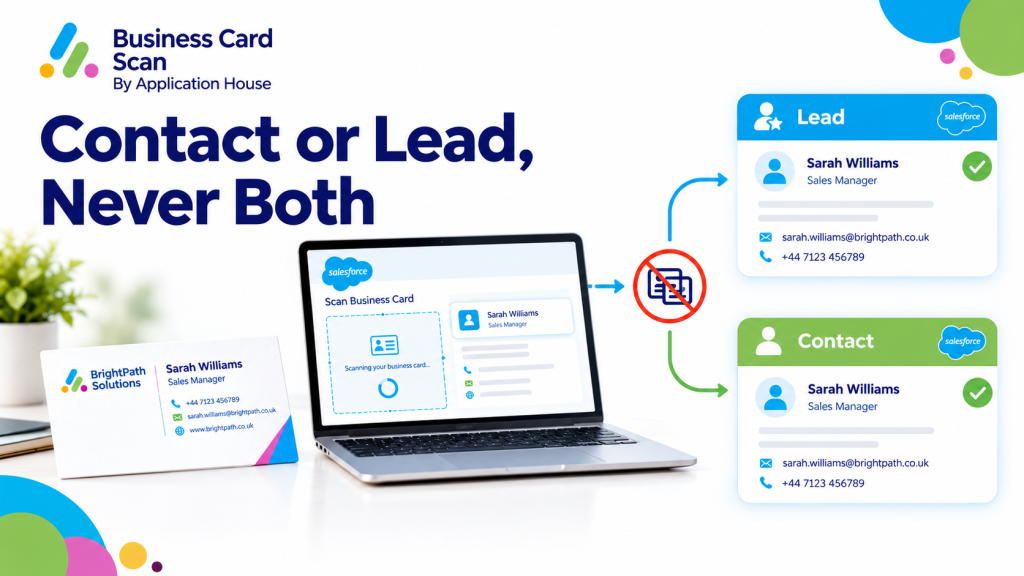
You can use Application House Business Card Scan App to look for your existing Contact first and create your Lead only when your Contact is not found.
You can therefore let your business card scan reflect an important commercial difference between a person your business already knows and a genuinely new prospect your sales team has just discovered.
Why Contact or Lead Is a Business Decision
You use a Contact when your person is already part of a known business relationship, while you normally use a Lead when your person still needs to enter your prospecting process.
You can create confusion when your same person exists as both your active Contact and your new Lead because different teams may start treating your same individual as two separate commercial relationships.
You may have your account manager working with your Contact while your business development representative sees your newly created Lead and starts another approach to your same person.
You can avoid that situation when your scan first determines whether your Contact already exists and creates your Lead only when your Contact is not found.
Keep Your Existing Customer Relationship as a Contact
You may receive a new business card from someone your organisation has worked with for several years.
You may find that your person’s job title has changed, your mobile number is different or your email address now uses another company domain.
You do not necessarily need another Lead simply because your person has handed your salesperson a new card.
You can use your scan to work with your existing Contact when your person is already known to your business.
You can keep your relationship centred around your existing Salesforce person instead of starting another prospect record for your same individual.
Hotel Software Sales Example
You may sell property management software to hotels and already have your hotel general manager as a Contact in Salesforce.
You may meet your general manager again at a hospitality conference and receive a newly printed business card with your person’s latest job title and mobile number.
You can scan your card and use your existing Contact rather than creating another Lead for someone your account team already knows.
You can keep your hotel relationship connected with your established customer history while your current contact information becomes available to your sales team.
Create Your Lead When Your Person Is Genuinely New
You may also receive a business card from someone your organisation has never dealt with before.
You can let your scan create your Lead when your Contact is not found.
You can place your genuinely new person into your normal prospecting process without also creating your Contact at the same time.
You can keep the distinction clear between your established relationships and your new sales prospects.
New Market Prospect Example
You may be expanding your software business into a new industry and meet your operations director from a company your sales team has never approached.
You can scan your person’s business card and create your Lead when your Salesforce process does not find your existing Contact.
You can let your sales team qualify your new prospect through your normal Lead process before your organisation decides how your relationship should progress.
You can avoid creating your Contact prematurely when your person is still at the beginning of your sales journey.
Avoid Treating an Existing Customer as a New Prospect
You may have your customer success team, account manager and sales team all using the same Salesforce organisation.
You can create unnecessary commercial confusion when your existing customer contact appears again as a fresh Lead after your salesperson scans another card.
You may have your new business team contact your person as if your organisation has never spoken before while your account team already has an established relationship.
You can reduce that risk when your Business Card Scan App uses your existing Contact when your person is found.
You can help your teams continue your relationship from the right point instead of restarting your customer journey.
Protect Your Sales Ownership and Handover
You may divide your sales process between prospecting teams and account management teams.
You may let your business development representatives own your Leads while your account managers work with your Contacts and customer Accounts.
You can create an ownership problem when your same person appears in both parts of your Salesforce process.
You can use Contact or Lead, Never Both to help your scanned person enter the part of your sales process that matches your existing relationship.
You can make your business card capture support your sales operating model instead of creating another record your team has to investigate later.
Existing Account Expansion Example
You may already sell one product to your customer and meet another decision maker from your same organisation during a customer workshop.
You can scan your new person’s card and use your Salesforce process to determine whether your person is already an existing Contact.
You can continue with your Contact where your person already exists instead of creating your person again as a Lead.
You can help your account team treat your conversation as part of your existing customer relationship rather than as unrelated new business.
Make Your Salesforce Reporting Easier to Understand
You rely on your Salesforce data to understand how much new business your team is generating and how your existing customer relationships are developing.
You can make that picture harder to interpret when your known Contacts repeatedly reappear as new Leads because your team scans another business card.
You can keep your new prospect population more meaningful when your scan creates your Lead only when your Contact is not found.
You can give your sales managers a clearer distinction between people your business already knows and people your team has genuinely added to your prospecting activity.
Support Different Sales Processes Across Your Business
You may not use Salesforce in exactly the same way across every team or industry.
You may have your hotel technology company working with Hotel Accounts and Contacts, your manufacturing business working with distributor relationships or your professional services company working with long term client Accounts.
You can still apply the same business principle when your scan is configured around your Salesforce process.
You can keep your known person as your Contact and create your Lead only when your person is genuinely new.
Manufacturing Distributor Example
You may have worked with your distributor for five years and already have several buying contacts associated with your organisation.
You may meet your distributor’s procurement director during your supplier meeting and receive another business card.
You can use your scan to determine whether your procurement director is already represented by your Contact before your sales team creates another prospect record.
You can preserve your existing commercial relationship when your person is known while your new person can still enter your Lead process when your Contact does not exist.
Professional Services Example
You may have your consultancy working with a large corporate client across several projects.
You may receive your finance director’s card during your steering meeting even though your organisation already knows your person through another engagement.
You can use your existing Contact when your person is found rather than creating your finance director as a new Lead.
You can keep your client history together while your teams continue to work from your established relationship.
Contact or Lead, Never Both Is Different from Duplicate Detection
You can use duplicate detection to help identify whether your Salesforce organisation already contains a similar record.
You can use Contact or Lead, Never Both for a different business decision because your feature determines whether your scan should continue with your Contact or create your Lead.
You can therefore use your matching process to find your existing person while your Contact or Lead rule controls what your scan does next.
You can keep your data quality process and your sales process working together without treating them as the same requirement.
Use One Scan to Make the Right Record Decision
You should not need your salesperson to scan your card, leave your scanner, search Salesforce manually and then decide whether to create another record.
You can configure your Business Card Scan App so your Contact and Lead form part of your same scan process.
You can let your scan use your Contact when your person is found and save your Lead when your Contact is not found.
You can make the decision part of your business card workflow rather than another administrative step your salesperson has to remember.
Keep Your New Business Process Separate from Your Existing Customer Process
You may use your Lead process for qualification, initial outreach and new business development while your Contacts represent people who are already connected with your Accounts and customer relationships.
You can protect that distinction when your Business Card Scan App does not create both records for your same person.
You can keep your genuinely new prospects within your Lead process while your established people remain part of your Contact based customer process.
You can make your Salesforce records better reflect how your business actually sells.
Explore our Business Card Scanner App on Salesforce AppExchange to discover its features and capabilities.
Give Your Sales Team a Simpler Rule
You can make your sales process easier for your users when your rule is simple.
You can use your existing Contact when your person is already known.
You can create your Lead when your Contact is not found.
You can avoid asking your salesperson to decide manually whether your person should exist in two different places.
You can let your Salesforce configuration control your business process while your salesperson concentrates on your customer conversation.
Contact or Lead, Never Both with Application House
You can use Application House Business Card Scan App to keep your business card capture aligned with your real Salesforce sales process.
You can work with your existing Contact when your person is already known and create your Lead only when your Contact is not found.
You can reduce situations where your established customer is treated as a new prospect, keep your sales ownership clearer and help your Salesforce data represent your actual customer relationships.
You can make each business card scan answer an important business question before your record is saved: is your person someone your business already knows, or is your person genuinely a new Lead?
Frequently Asked Questions
1. What is the difference between a Salesforce Contact and a Lead?
A Salesforce Lead represents a potential customer who has not yet entered an established customer relationship with your business. A Contact represents a person associated with an existing Account or business relationship. Using the correct record type helps your sales team manage prospects and existing customers separately.
2. Can you create a Salesforce Contact or Lead from one business card scan, but not both?
Yes. With Application House Business Card Scan App, you can configure your scanning process to use an existing Contact when a matching Contact is found and create a Lead only when no matching Contact is found. This helps prevent the same person from being treated as both an existing customer and a new prospect.
3. How can you prevent creating duplicate Leads and Contacts in Salesforce?
You can configure your Business Card Scan App to check whether a Contact already exists before creating a Lead. If the Contact is found, you can continue with the existing Contact. If no matching Contact is found, your scan can create a new Lead.
4. Why should you avoid creating the same person as both a Salesforce Lead and Contact?
Creating the same person as both a Lead and Contact can confuse your sales teams. Your business development team might approach the Lead as a new prospect while your account manager is already managing the same person as an existing Contact. Keeping one appropriate record helps maintain clear customer relationships.
5. Can you use an existing Salesforce Contact when scanning a new business card?
Yes. If the person already exists as a Contact in Salesforce, you can configure your Business Card Scan App to use that existing Contact rather than creating another Lead. This helps your team maintain the person’s existing customer history and business relationships.
6. What happens when a scanned business card belongs to someone who is already in Salesforce?
When your configured scanning process finds an existing Contact, it can continue with that Contact instead of creating a new Lead. This helps your sales team recognise existing customers, business partners and known stakeholders when they receive another business card.
7. Can you create a Salesforce Lead automatically when an existing Contact is not found?
Yes. You can configure your Business Card Scan App to create a new Lead when no matching Contact is found. This allows genuinely new prospects to enter your normal Salesforce Lead qualification and prospecting process.
8. How does Contact or Lead, Never Both improve Salesforce data quality?
It helps prevent the same person from appearing unnecessarily in both your Lead and Contact records through the scanning process. This reduces confusion, supports consistent customer information and helps your sales teams understand whether they are managing a new prospect or an established relationship.
9. Can you use Contact or Lead, Never Both for existing customer relationships?
Yes. You can use this feature when you receive a new business card from an existing customer, account manager, supplier or business partner. Your scanning process can use the existing Salesforce Contact instead of creating another Lead for someone your organisation already knows.
10. Can you update an existing Salesforce Contact when someone gives you a new business card?
Yes. You can use the existing Contact in your scanning process when the person is already known to your business. This is useful when their job title, mobile number, email address or company details have changed. You can review the captured information and handle the existing record according to your configured field-mapping process.
11. How does Contact or Lead, Never Both help sales ownership in Salesforce?
It helps keep your sales ownership clearer by maintaining the distinction between prospecting and existing customer management. Your business development representatives can focus on Leads, while your account managers can continue working with established Contacts and their related Accounts.
12. Does Contact or Lead, Never Both replace Salesforce Duplicate Rules?
No. These features serve different purposes. Salesforce Duplicate Rules help identify potential duplicate records, while Contact or Lead, Never Both controls whether your business card scanning process should use an existing Contact or create a new Lead. You can use both approaches together to support better Salesforce data management.
13. Can you use Contact or Lead, Never Both for hotel and hospitality sales?
Yes. For example, if your hotel software company already has a hotel general manager saved as a Salesforce Contact, scanning their new business card should not automatically create another Lead. You can continue with the existing Contact and maintain the established hotel customer relationship.
14. Can manufacturers use Contact or Lead, Never Both for distributor relationships?
Yes. Manufacturers can use this approach when meeting existing distributors, procurement directors or purchasing managers. If the person already exists as a Salesforce Contact, your scanning process can use that record rather than creating another Lead. Genuinely new contacts can enter the Lead process when no matching Contact is found.