Create Any Salesforce Record, Configure Any Field and Any Related Records
Your business card contains information about a person, but your business may need much more than another Contact or Lead in Salesforce.
You may need your scanned person connected with your hotel, property, distributor, client, project, vacancy, product interest or another record that represents how your organisation actually operates.
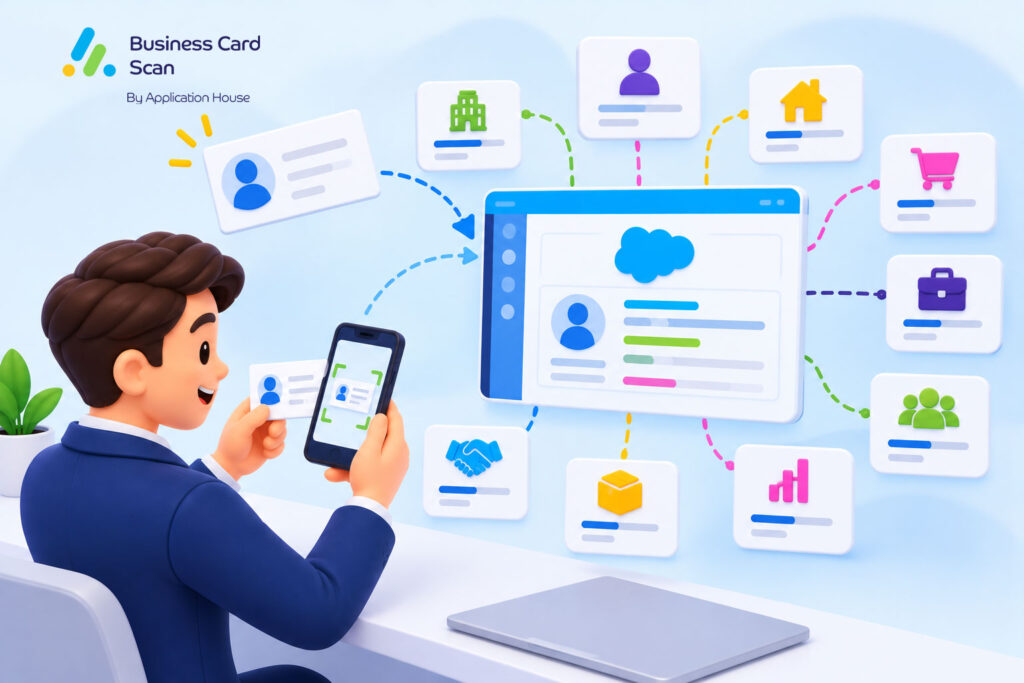
You can use Application House Business Card Scan App to choose which standard or custom Salesforce records your scan uses, configure where your scanned information goes and relate your records around your own Salesforce business process.
You can make your scanner fit your Salesforce rather than changing your Salesforce process to fit your scanner.
Create Any Salesforce Record from a Business Card
Your organisation does not have to treat every business card as a Lead or Contact only.
You can configure your scan to use any standard or custom Salesforce object that your administrator can access and create.
You can use your Lead, Contact, Account, Opportunity or Task when those records fit your sales process.
You can also use your own custom Salesforce objects when your business has built a more specialised data model.
You can therefore make your business card the starting point for the business record your team actually needs.
Use Standard Salesforce Records When They Fit Your Process
You may have a straightforward sales process where your salesperson meets a prospect and your Salesforce organisation uses standard Accounts, Contacts and Opportunities.
You can configure your scan around those standard Salesforce records when that structure already represents your business.
You may instead want your scan to create a Task alongside your Contact because your next action is as important to your sales process as your captured contact information.
You can decide which records your particular scan needs rather than creating records your team will never use.
Use Custom Salesforce Records When Your Business Needs More
Your Salesforce organisation may contain custom objects because your industry needs to manage information that a standard CRM object does not represent.
You can include your custom objects in your Business Card Scan App configuration when your administrator can access and create those records.
You can make your scanned person part of your existing Salesforce application instead of copying your contact details into another process afterwards.
You can therefore preserve the Salesforce design your organisation has already invested in.
Configure Any Salesforce Field Around Your Business Process
Your business card may provide your person’s name, company, title, email address, telephone number, website and address, but your Salesforce process may organise that information differently.
You can decide which Salesforce field receives each piece of your scanned information.
You can map your captured information to the fields your organisation actually uses instead of being restricted to a predefined scanner field structure.
You can therefore keep your existing Salesforce terminology and data model while your Business Card Scan App adapts to your organisation.
Put Your Scanned Information Where Your Team Expects It
Your organisation may use one Salesforce field for your direct telephone number and another field for your mobile number.
You may store your company website, country, job title or other scanned information in fields that match your own Salesforce design.
You can configure your scan so your information is placed into your chosen fields.
You can give your Salesforce users information in the same places they already expect to find it.
Set Fixed Salesforce Field Values During Your Scan
Your sales process may need information that will never appear on your prospect’s business card.
You may want your particular scan to identify your business unit, customer type, product family, acquisition source or another value that your organisation already uses.
You can configure your chosen Salesforce field with a fixed value when your scan always needs the same business value.
You can therefore add important business context without asking your salesperson to enter the same information after every scan.
Use Different Fixed Values for Different Business Processes
You may have one scan for your enterprise sales team and another scan for your partner team.
You can configure your fields differently when your two teams need different business values.
You may want your enterprise scan to assign one customer segment while your partner scan uses another segment.
You can make your scan identify the commercial process behind your contact rather than storing only the words printed on your card.
Relate Your Salesforce Records from the Same Business Card Scan
Your Salesforce value often comes from the relationships between your records rather than from individual records sitting on their own.
You can configure your Business Card Scan App so your records are related to each other as part of your scan.
You can link your Contact to your Account and link your Task to your new Contact when that is how your Salesforce process operates.
You can build your scan around the relationships your team needs to understand your customer and your next action.
Control the Order Your Related Records Are Saved
Your related Salesforce record may need another record to exist before your relationship can be created.
You can configure your save order so your required record is created first and your dependent record can then be related to it.
You can therefore make your record relationships part of your configured scan rather than asking your user to create records individually and connect them afterwards.
You can make your data arrive in Salesforce in the structure your business process expects.
Make Your Business Card Scan Follow Your Industry Data Model
Your industry may use Salesforce very differently from another organisation even when both businesses receive exactly the same type of business card.
You may care about a hotel property, another company may care about a manufacturing site and another business may care about a recruitment vacancy.
You can configure your Business Card Scan App around those differences because your business decides which Salesforce records and fields have value.
You can make your scan reflect what the relationship means to your organisation rather than simply capturing who handed you the card.
Hotel Software Sales
Your hotel software company may use Salesforce to manage hotel groups, individual properties, decision makers and different software requirements.
You may meet your hotel operations manager while your Salesforce organisation already contains your hotel group and individual hotel property.
You can configure your scan so your new person’s information goes into your appropriate Contact fields while your Contact is related to the Salesforce records your hotel sales process uses.
You can also create your configured product interest or another custom sales record when your organisation uses one to represent what your hotel is considering.
You can give your sales team a business relationship that tells you which person you met, which hotel your person represents and what your commercial conversation relates to.
Manufacturing and Industrial Sales
Your manufacturing sales process may revolve around customer companies, individual plants, distributors, procurement contacts and different product ranges.
You may receive your engineering manager’s business card while your Salesforce organisation already contains your manufacturer’s Account and a custom Site record for your factory.
You can configure your scan to create or use the records your industrial sales team needs and relate your person to the correct part of your customer structure.
You can set your configured fields so your sales team can identify the relevant product family, market or other fixed business context where your scan requires it.
You can make your captured business card support your industrial account structure rather than leaving your engineering contact disconnected from your plant or commercial requirement.
Recruitment and Staffing
Your recruitment business may organise Salesforce around client Accounts, hiring managers, Vacancies and other recruitment records.
You may meet your HR director while your team is already working on several vacancies for your company.
You can configure your scan so your hiring manager becomes the appropriate Salesforce person record and your related records connect your person with the business process your recruitment team uses.
You can use your chosen fields to store your contact information where your consultants already expect to find it.
You can make your business card part of your recruitment workflow instead of creating a generic contact that your consultant later has to organise manually.
Professional Services
Your consulting business may manage client organisations, stakeholders, opportunities, engagements and follow up activities in Salesforce.
You may receive your finance director’s card during a client workshop where your organisation already has an active relationship with your company.
You can configure your Business Card Scan App around the records your consultancy uses to manage that relationship.
You can relate your scanned person to your appropriate client records and create your configured Task or other business record where your process requires it.
You can give your account team more useful context because your captured person enters the Salesforce structure your client team already understands.
Software Partner and Channel Sales
Your technology company may sell through resellers, implementation partners or referral partners as well as through your direct sales team.
You may need your partner contact connected with your Account and your own partner, referral or product interest record.
You can configure your scan around your channel data model instead of forcing your partner contact through the same Salesforce structure you use for your direct prospect.
You can also configure your fields with the values your partner team needs for its own sales process.
You can let your Salesforce configuration reflect the difference between your direct sale and your channel relationship.
Use Different Scans for Different Business Processes
Your organisation may have several teams that receive business cards for completely different reasons.
You may have your new business team capturing prospects, your account managers meeting existing customer stakeholders and your partner managers building relationships with resellers.
You can configure different scans around the Salesforce records and fields each process requires.
You can give your users a focused scan without forcing every department to create the same collection of records.
You can keep your Salesforce data model consistent while your scanning experience changes according to your business purpose.
Give Each Team the Data It Actually Needs
Your salesperson may need your Contact, Account and sales record while your partner manager may need your Contact, Account and partner record.
You may have another user who needs your Contact plus a custom site, project or membership record.
You can design each scan around your team’s business responsibility.
You can reduce unnecessary Salesforce records because your scan creates what your process needs rather than everything your application could possibly create.
Change Your Scan When Your Business Process Changes
Your Salesforce process may change when your organisation launches another service, enters another market or changes the way your team qualifies customers.
You should not have to redesign your whole business process because your scanner only understands a fixed set of records.
You can change your Object Scan Mapping inside Salesforce when your administrator needs to change which records your scan creates, which fields your scan fills or how your records are related.
You can keep the power in your hands because your organisation controls your scanning configuration around your own process.
Avoid Building a Second Data Model Just for Business Card Scanning
Your Salesforce organisation may already represent years of decisions about how your company sells, serves customers and reports on its business.
You should not need another contact database or a separate scanner structure that your team later has to translate back into Salesforce.
You can make your Business Card Scan App use the Salesforce objects, fields and relationships your organisation already understands.
You can reduce the gap between capturing your person’s details and making those details useful to your business.
You can make your scanner become part of your Salesforce process rather than another system beside it.
Keep Your Salesforce Native Business Process
Your Business Card Scan App operates inside Salesforce, so you can keep your scanning workflow close to the Salesforce information your users already work with.
You can configure your records and fields around your Salesforce design while your Salesforce access continues to determine what your users can work with.
You can make your business card capture part of your existing Salesforce environment instead of sending your customer information through a separate contact system.
You can keep your customer data and your scanning process connected with the platform your organisation already uses.
Put the Power in Your Hands
Your business understands your own Salesforce process better than a business card scanner vendor ever could.
You can decide which Salesforce records your scan should create, which fields your captured information should fill, which fields should have fixed values and how your records should relate.
You can configure your Business Card Scan App around your sales model instead of accepting a predefined Lead or Contact workflow.
You can change your configuration when your business changes without having to redesign your Salesforce process around your scanner.
Explore our Business Card Scanner App on Salesforce AppExchange to discover its features and capabilities.
Create Any Salesforce Record, Configure Any Field and Any Related Records with Application House
Your business card can become much more than another name and email address in Salesforce.
You can use Application House Business Card Scan App to make your scanned information part of the Salesforce data model your business has chosen.
You can create your appropriate standard or custom Salesforce records, configure your chosen fields, set fixed values and relate your records according to your business process.
You can use the same fundamental capability whether your organisation sells hotel software, industrial equipment, recruitment services, professional services or technology through partners.
You can put the power in your hands by making your business card scan follow your Salesforce process instead of making your Salesforce process follow your business card scanner.
Business Card Scanner for Any CRM | Business Card Scan App
Scan business cards, event badges and QR codes straight into Salesforce, HubSpot, Pipedrive and any CRM. Built by Application House, a Salesforce Partner.
Frequently Asked Questions
1. Can you create any Salesforce record from a business card scan?
Yes. You can configure Application House Business Card Scan App to create records in Salesforce standard or custom objects. You can choose the record types that match your business process instead of being restricted to creating only Leads or Contacts.
2. Can you map business card information to custom Salesforce fields?
Yes. You can configure field mapping to send captured information, such as name, company, job title, email address and phone number, into your selected Salesforce fields. You can also configure fixed field values to meet your business requirements.
3. Can you create custom Salesforce objects from a business card scan?
Yes. You can configure your scan to create records in your own Salesforce custom objects. For example, you can create a Distributor, Partner Enquiry, Property Interest or Recruitment Enquiry record using your configured Salesforce fields and relationships.
4. Can you create multiple Salesforce records from one business card scan?
Yes. You can configure one scan to prepare multiple related Salesforce records, including Contacts, Accounts, Campaign Members, Tasks and custom objects. You can review the records and their relationships before saving them to Salesforce.
5. Can you configure different Salesforce fields for different business processes?
Yes. You can configure your scanning process to populate different Salesforce fields based on your business requirements. For example, a recruitment team can capture hiring-related information, while a property sales team can populate fields related to property enquiries.
6. Can you use fixed values when creating Salesforce records from a scan?
Yes. You can configure fixed field values to populate Salesforce fields automatically during record creation. This is useful when you want to assign predefined values such as Lead Source, Record Type or other business-specific information without requiring users to enter them manually.
7. Can you review Salesforce records before saving them from a business card scan?
Yes. You can review the Salesforce records prepared by your scan before the final save. You can check captured information, review which records will be created or updated and verify relationships between records before confirming the save.
8. Does creating custom Salesforce records from a scan require coding?
You can configure your scanning process around your Salesforce objects and fields without writing custom Apex code for the standard configuration. Your Salesforce administrator can define the required objects, field mappings and record relationships according to your organisation’s permissions and business requirements.