Scan Digital Business Cards into Salesforce
You may meet your customer without receiving a traditional printed business card
.
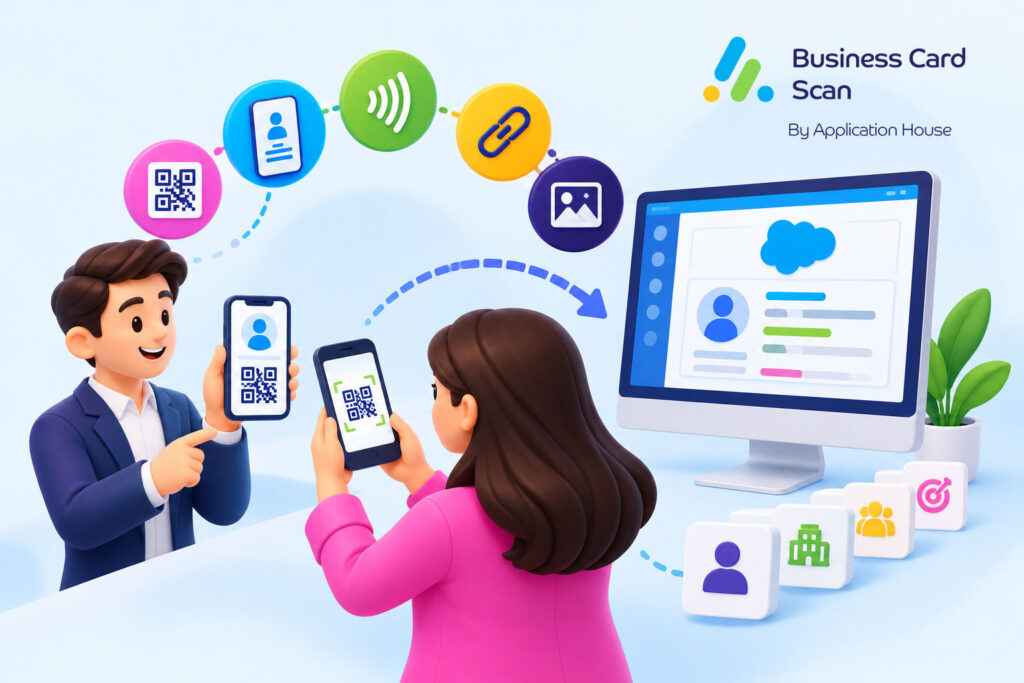
You may instead receive your person’s contact details through a digital business card displayed on a phone, tablet or computer, through a QR code, website link, NFC card or digital image.
You can use Application House Business Card Scan App to capture your supported digital business card information and bring your contact details into your Salesforce process.
You can review your captured information and create your Lead, Contact, Contact and Account, Campaign Member or another configured Salesforce record.
You can let your customer share contact information digitally while your business keeps your relationship structured inside Salesforce.
What Is a Digital Business Card
You can think of a digital business card as the electronic version of your traditional paper business card.
You can share your digital business card through a QR code, website link, NFC card or digital image rather than handing your contact a printed card.
You can use your digital card to present your name, company, job title, telephone number, email address, website and other contact information electronically.
You can receive your customer’s digital details during a meeting, event, online conversation or networking introduction without needing your customer to carry a printed card.
Scan a Digital Business Card Shown on a Screen
You can use Photo Scan when your customer displays a digital business card on a phone, tablet, laptop or another screen.
You can capture your visible contact information and bring your details into your configured Salesforce process.
You can review your captured information before your Salesforce records are saved.
You can therefore support your customer’s digital way of sharing information without asking your person to provide a paper card.
Explore our Business Card Scanner App on Salesforce AppExchange to discover its features and capabilities.
Digital Business Card Image
You may receive your digital business card as an image rather than viewing your card directly on another person’s phone.
You can use your available image as your scanning source and capture your contact information for your Salesforce process.
You can make your digital card useful to your wider sales team instead of leaving your customer’s details as an image inside your messages or files.
Share Digital Business Cards Through QR Codes, Website Links or NFC Cards
You may encounter several ways of sharing your digital business card because different digital card providers use different technologies.
You may have your customer display a QR code, share a website link, tap an NFC card or show you a digital card image.
You can use the supported capture method in your Business Card Scan App according to how your customer’s information becomes available.
You can keep your Salesforce process consistent even when your customers prefer different ways of sharing their contact details.
QR Code Scan for Digital Business Cards
You can use your QR Code Scan when your customer presents a supported contact QR code or digital business card link.
You can scan your QR code through the Salesforce Mobile App and continue through your configured Salesforce process.
You can use your QR Code Scan when your customer prefers to display a code instead of showing your complete digital card on the screen.
You can keep your digital introduction connected with your Salesforce customer data rather than saving your contact only to a personal device.
Website Link for a Digital Business Card
You may receive your customer’s digital business card through a website link that represents your person’s online card or contact profile.
You can capture a supported digital business card link through your QR Code Scan where your code contains that link.
You can also use your captured link as useful information when your Find More Details capability is enabled for your configured process.
You can make your digital business card link part of a wider Salesforce relationship rather than treating your link as the final business outcome.
NFC Business Card Context
You may have your customer use an NFC business card to open your digital profile or website on your phone.
You should use your supported Business Card Scan App methods once your digital information becomes available, because your current app functionality does not claim direct NFC tag scanning.
You can still continue your Salesforce process when your digital card is displayed in a supported form that your app can capture.
You can therefore recognise NFC as one way your customer may share a digital business card without confusing your sharing technology with your app’s supported scanning method.
Use Find More Details with Your Digital Business Card
You may receive a digital business card containing only your person’s name, company, job title or website link.
You can use Find More Details where your administrator has enabled it to look for additional public information using your captured name, company, title or link.
You can keep your captured or typed information because your Find More Details process fills your blank information rather than overwriting your existing values.
You can review your additional details before your Salesforce record is saved.
You can make a simple digital introduction more useful to your sales team without asking your representative to research your prospect manually.
Create Lead from Digital Business Card Scan
You may meet your new prospect at a networking event where your person shares a digital business card instead of a printed card.
You can use your Digital Business Card Scan to capture your available information and create your Lead when your configured Salesforce process treats your person as a new prospect.
You can place your new relationship into your normal qualification process while your conversation is still fresh.
You can give your sales team a structured Salesforce Lead instead of leaving your prospect only inside your phone or digital card application.
Create Contact from Digital Business Card Scan
You may already know your customer’s organisation when another stakeholder shares their digital business card with you.
You can capture your new person’s information and create your Contact when your configured Salesforce process requires your person to become part of your existing customer relationship.
You can give your wider account team visibility of your new stakeholder instead of leaving your person’s details on one salesperson’s phone.
You can make your digital introduction part of your shared customer relationship inside Salesforce.
Create Contact and Account from Digital Business Card Scan
You may receive your digital business card from a person and organisation that are both new to your Salesforce data.
You can capture your available person and company information and create your Contact and Account when your configured process requires both records.
You can relate your Contact to your Account so your new person enters Salesforce with your company context.
You can give your sales team a more complete commercial relationship than you would get from simply saving your person’s telephone number.
Create Campaign Member from Digital Business Card Scan
You may meet your prospect during your conference, exhibition, webinar or another marketing activity where your person shares contact information digitally.
You can capture your digital business card information and use your configured Campaign Member process when your business needs your person connected with your Salesforce Campaign.
You can keep your digital contact linked with the marketing activity that created your conversation.
You can give your sales and marketing teams useful context instead of treating your digital card as an unrelated contact.
Digital Contact Sharing at an Exhibition
You may find that your event visitors increasingly display digital cards or QR codes instead of carrying printed business cards.
You can capture your supported digital contact information and continue through your Campaign process.
You can let your customer choose a modern way to share your details while your organisation keeps your event relationship inside Salesforce.
Create Any Salesforce Record from Digital Business Card Scan
You may need your Digital Business Card Scan to do more than create your standard Lead or Contact.
You can use your captured digital contact information with any standard or custom Salesforce object your administrator can access and create according to your configured scan.
You can map your information to your chosen Salesforce fields and relate your records around your business process.
You can make your digital contact exchange work with your actual Salesforce data model instead of forcing every person into one fixed record type.
Use Digital Business Cards After Virtual Meetings
You may complete your entire sales conversation through video meetings without ever exchanging a physical business card.
You can receive your prospect’s digital business card or card image after your online meeting and bring your available contact information into Salesforce.
You can keep your remote sales process structured while your wider team gains access to your new relationship.
You can support the way your modern sales team actually meets customers instead of requiring a physical card before your contact can enter Salesforce.
Choose the Right Scan for How Your Customer Shares Information
You may receive your person’s details through a digital card image, QR code, barcode or event badge depending on your business situation.
You can choose your appropriate capture method while your underlying Salesforce process remains configured around your records and fields.
You can keep your customer interaction flexible without creating a separate CRM workflow for every way your information is shared.
QR Code Scan
You can use your QR Code Scan when your digital business card is shared through a supported contact code or digital business card link.
You can use your Salesforce Mobile App for your QR Code Scan and continue through your Salesforce review and save process.
You can keep your QR based digital introduction connected with the same customer data your team already uses.
Barcode Scan
You can use your Barcode Scan when your supported barcode contains contact information or another supported digital business card source.
You can continue through your configured Salesforce process after your supported information is captured.
You can keep your barcode based contact capture connected with Salesforce without turning this digital business card article into a separate barcode workflow.
Badge Scan
You may meet your digital business card contact at an exhibition where your event also gives your attendee a printed badge.
You can use your Badge Scan when your event process needs your attendee information captured from your printed badge.
You can use your digital business card when your person chooses to share their own contact information directly.
You can give your event team several supported ways to capture your valuable business relationships while your Salesforce process remains consistent.
Digital Business Card Scan and Paper Business Card Scan
You may still receive your traditional printed card from one customer while your next prospect shows you a digital business card.
You can use your Business Card Scan App for both types of customer interaction through the appropriate supported capture method.
You can keep your review and Salesforce record process familiar even when the format your customer provides changes.
You can let your customer choose how to share their information while your organisation keeps control of what happens after your capture.
Review Your Digital Business Card Before Saving
You may want to confirm your person’s information before your Salesforce record is created or updated.
You can review your captured digital business card details through your normal scan process before your final save.
You can correct your information when your user needs to clarify something shown on your digital card.
You can keep your user involved in your Salesforce data decision rather than treating your digital contact as an automatic import.
Keep Your Digital Contact Exchange Inside Salesforce
You may have your customers move away from printed business cards while your organisation still needs structured customer information.
You can support your customer’s digital way of sharing contact details while your Salesforce process continues to use your configured objects, fields and relationships.
You can avoid building another contact management process simply because your customer uses a digital business card.
You can make your digital contact exchange part of the Salesforce environment your sales team already uses.
Scan Digital Business Cards into Salesforce with Application House
You can use Application House Business Card Scan App when your customer shares a digital business card instead of handing you a traditional paper card.
You can capture your supported digital card shown on a screen, your card image or your supported QR contact information and digital business card link.
You can use Find More Details where configured when your captured information needs additional public details before your save.
You can create your Lead, Contact, Contact and Account, Campaign Member or another configured standard or custom Salesforce record according to your business process.
You can use your QR Code Scan, Barcode Scan and Badge Scan in their relevant business contexts while your dedicated scanning article can cover those capture methods in greater detail.
You can let your customer choose a modern way to share contact information while your business keeps your relationship structured, reviewed and useful inside Salesforce.
Frequently Asked Questions
1. How can you scan digital business cards into Salesforce?
You can use Application House Business Card Scan App to capture digital business card information displayed on a phone, tablet, laptop or shared as an image. You can also scan supported QR codes containing contact information and bring the captured details into your Salesforce workflow.
2. Can you create Salesforce Leads and Contacts from digital business cards?
Yes. You can configure your Digital Business Card Scan to create Salesforce Leads or Contacts from captured information. You can map details such as name, company, job title, email address and phone number to your selected Salesforce fields and review them before saving.
3. Can you scan a digital business card displayed on another phone or computer?
Yes. You can use Photo Scan when someone displays their digital business card on a phone, tablet, laptop or computer screen. You can capture the visible contact information, review the details and create your configured Salesforce records without requiring a printed business card.
4. Can you scan digital business cards using QR codes into Salesforce?
Yes. You can use QR Code Scan through the Salesforce Mobile App when someone shares a supported contact QR code or digital business card link. You can capture the available contact information and continue through your configured Salesforce record creation process.
5. Can you create multiple Salesforce records from one digital business card scan?
Yes. You can configure one scan to prepare multiple Salesforce records, including Leads, Contacts, Accounts, Campaign Members and supported custom objects. You can map captured information to your selected fields and establish relationships between records according to your business requirements.
6. How can you find additional contact details from a digital business card?
You can use the Find More Details feature when your administrator has enabled it. It can look for additional public information using captured details such as name, company, job title or website link. It fills blank fields without overwriting your existing captured or manually entered information.
7. Can you add digital business card contacts to Salesforce Campaigns?
Yes. You can configure your scanning process to create Salesforce Campaign Members from captured digital business card information. You can connect existing or newly created Leads and Contacts to your selected Campaign, helping your sales and marketing teams track contacts from exhibitions, conferences and networking events.